Guide/SendApp Agent/Automations
Automations: make SendApp react on its own
An automation is a rule you read like a sentence: when something happens, if the conditions are true, then a sequence of actions runs. It’s how you make SendApp react on its own — a welcome on the first message, a reminder about a cart left halfway — without anyone having to remember.
Updated on July 16, 2026 · 7 min read
Before you start
- A SendApp Agent account
- A connected channel
- A template or message ready to send
How to read an automation
Every automation is a sentence in three pieces: **when** (the event that starts it), **if** (the conditions, optional) and **then** (the actions). As you build it, the panel rewrites it back to you in plain words — “When first message then send template…” — so you see straight away whether it says what you meant.
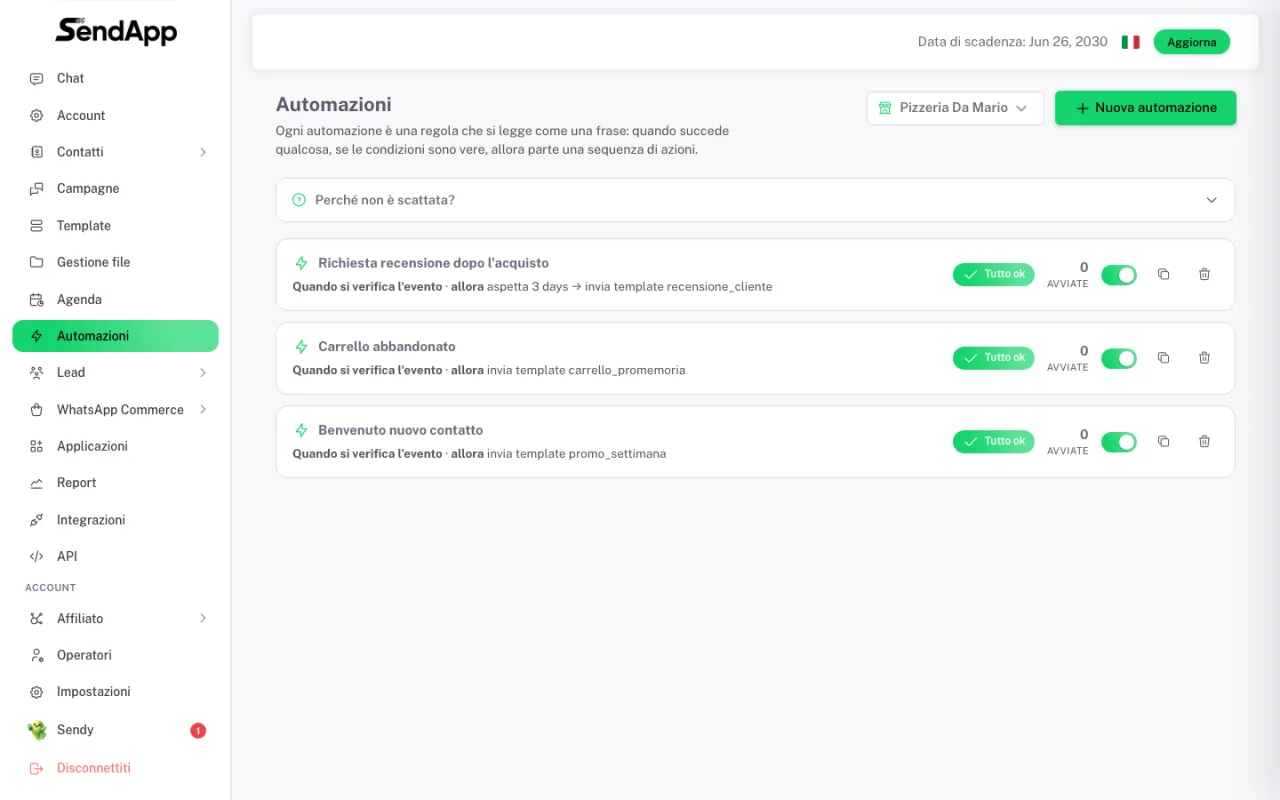
- When (the event)
- The only required piece. Pick what starts everything: a contact’s very first message, a cart left unpaid, and so on. Under each event the panel explains in one line when it actually fires.
- If (the conditions)
- Optional: they narrow down when the automation runs. With no conditions it runs every time the event happens.
- Then (the actions)
- What happens: send a message or a template, wait an interval before the next step, and chain several actions in sequence.
Build your first automation
- 1
Open Automations and create
From the side menu go to Automations and hit “New automation”. With more than one account, pick the right one first: an automation lives inside an account.
- 2
Give it a name you’ll understand
You’re the one reading that name in six months: “Welcome new contact” beats “Auto 1”. In the list it’s the only thing telling one rule from another.
- 3
Choose the when
Select the event that starts the automation. Read the explanation line underneath: it tells you exactly when it fires.
- 4
Add the actions and save
Define what should happen (send template, wait, send again) and save. After the first save the pre-flight check appears and verifies the rule before it runs for real.
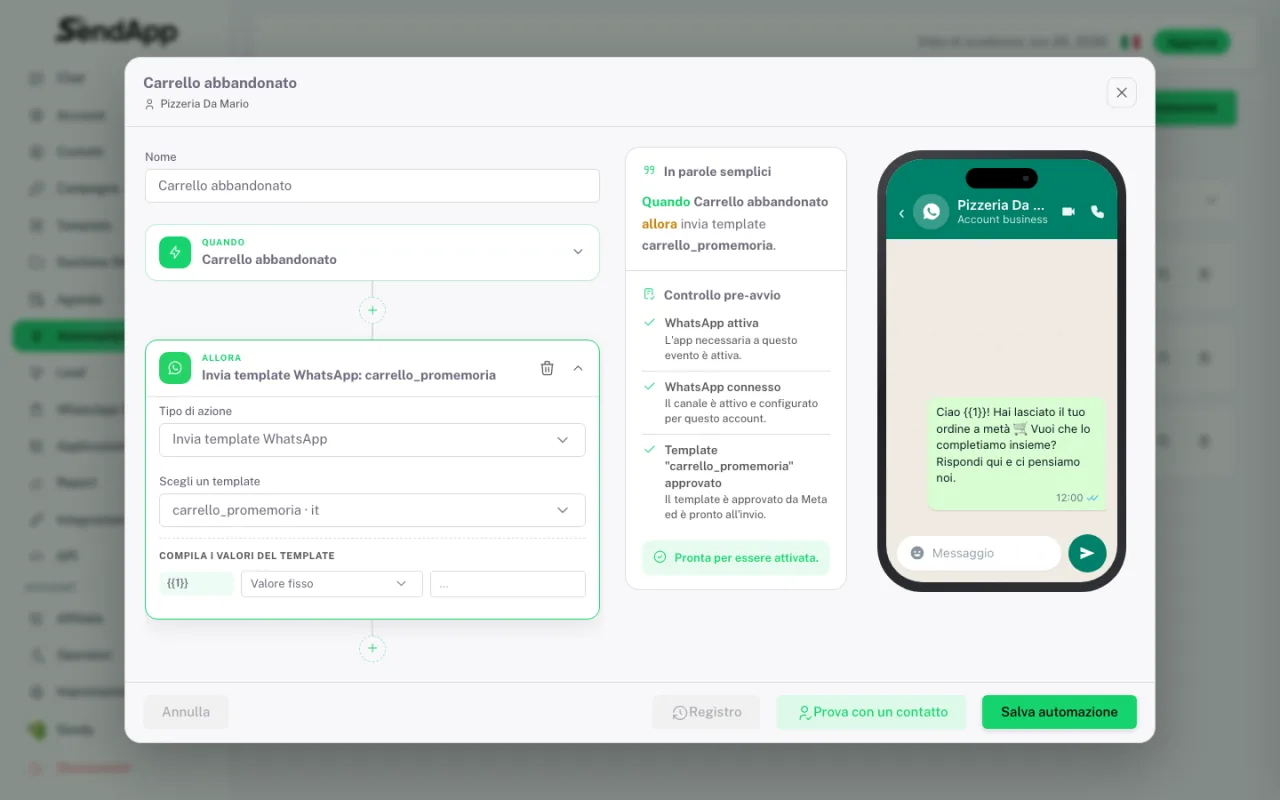
Anti-repeat: don’t hammer your customers
This is the part that protects your number’s reputation, and it sits inside every automation. You can say: don’t repeat to the same contact more than once every so many days, and never exceed a maximum number of sends per contact overall. Without those two brakes, a recurring event turns into a string of identical messages to the same person — the fastest way to get blocked or trigger a STOP.
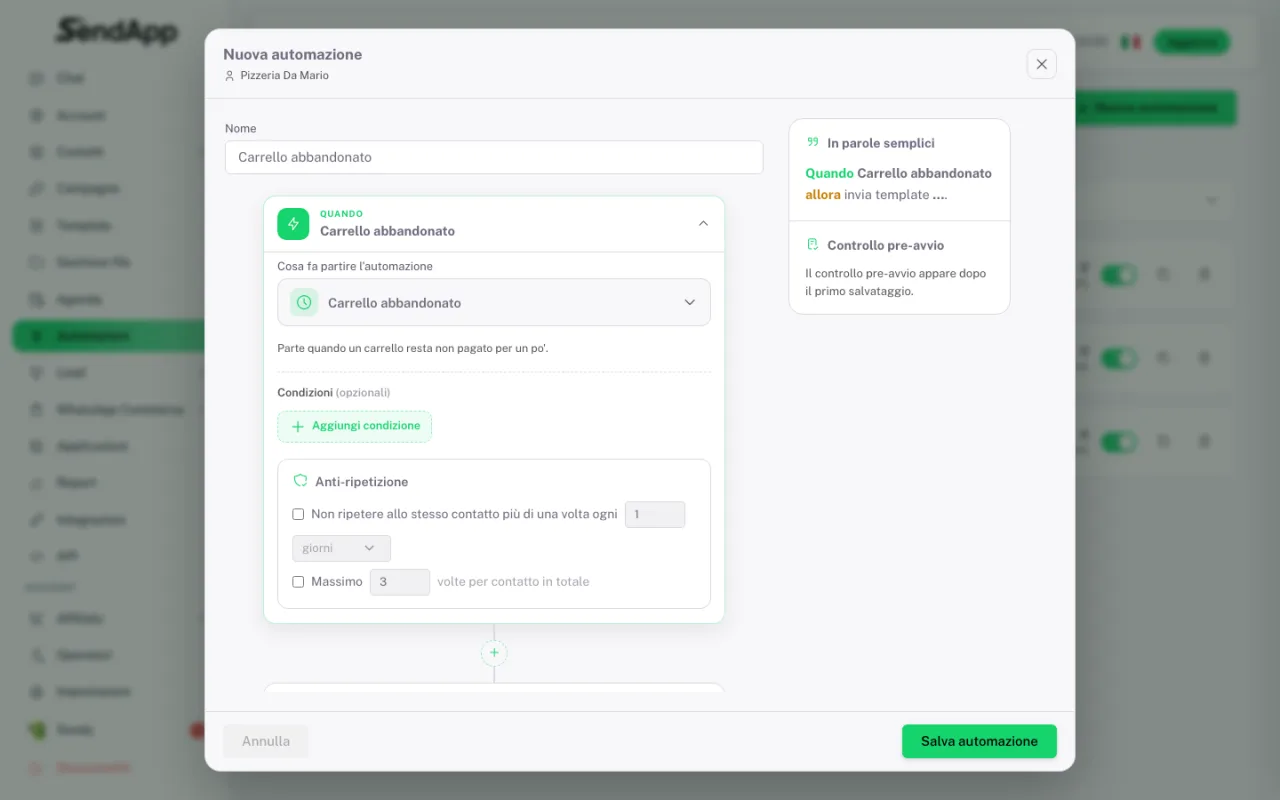
The abandoned cart
Among the events there’s a dedicated abandoned-cart trigger: it fires when a cart stays unpaid for a while. Mind the prerequisite — for it to fire a cart has to actually exist, so your shop must be connected (WhatsApp Commerce or your own integration). The trigger alone doesn’t invent carts.
If an automation doesn’t fire
On the Automations page there’s a “Why didn’t it fire?” item: open it before touching the rule, it tells you what went wrong. The three usual causes: the event never actually happened, a condition excluded the contact, or anti-repeat stopped it because that person had been contacted recently.
Automation, keywords or AI?
| What you want | The right tool |
|---|---|
| React to an event (first message, cart left behind) | Automation |
| Always reply the same way to a precise word (“hours”) | Keyword auto replies |
| Understand open questions and answer in your words | AI assistant |
The three tools live together: the automation makes the first move at the right time, keywords cover the fixed questions, the AI handles everything else and hands over to a human when needed.
An automation that sends promotional messages needs the contact’s consent, exactly like a campaign. Automating something doesn’t replace opt-in.
Ready to put it into practice?
Open SendApp and follow the steps in this guide. Need help? Support is one message away.