WhatsApp Templates: How to Write Them and Get Them Approved
In short
WhatsApp message templates are useful for sending messages outside of the 24-hour window and for scalable campaigns. In this article, we'll look at...
WhatsApp Templates: How to Write Them, Get Them Approved, and Increase Your CTR
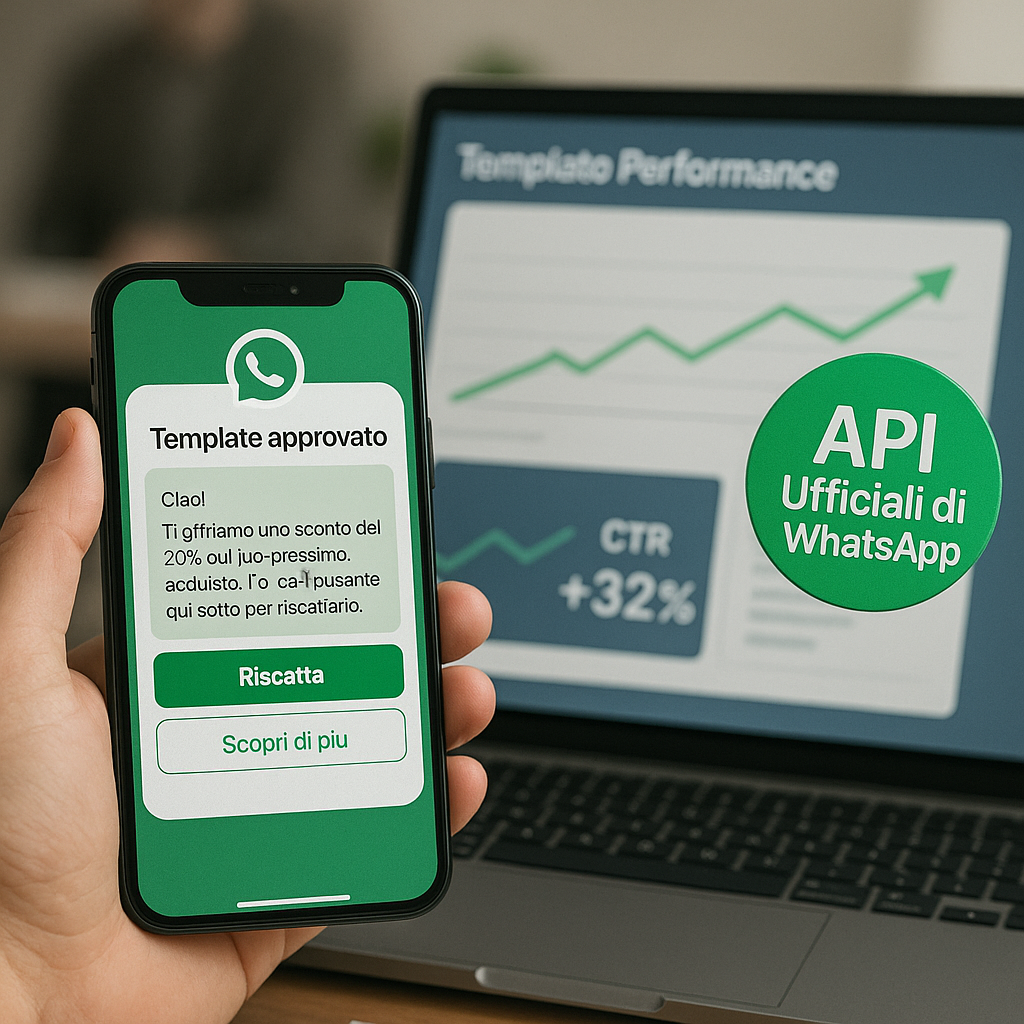
WhatsApp message templates are used for sending messages outside the 24-hour window and for scalable campaigns. In this article, we'll look at how to design them, get them approved, and make them truly perform, with practical instructions on how to manage them in SendApp (SendApp Agent, on Meta’s official API).
What is a template and when to use it?
A template is a pre-approved WhatsApp message that you can send even if the customer hasn't messaged you in the last 24 hours. It's essential for:
-
marketing campaigns and reactivation
-
transactional/service notifications
-
authentication/OTP and reminder
With SendApp Agent you work with the official API and you don't pay extra per message charges beyond Meta costs, with ready-made plugins for WordPress/PrestaShop/Shopify, so you can easily connect e-commerce and CRM.
Winning structure of a template
A good template always has four clear blocks:
-
Object/Hook
An initial line that immediately explains the value.
Examples:
• “Confirm reservation for today at 8:00 PM”
• “New menu: 2 for 1 tonight for outside tables” -
Content with variables
Short text with placeholders for customization: name, product, date, amount.
Example:
“Hi {{1}}, your order {{2}} is ready for collection at {{3}}.” -
Call to Action
Buttons or links: “Open order”, “Confirm time”, “Book now”. -
Compliance and trust
Opt-out or preference links: “To stop receiving promotions, reply STOP.”
Most common types
-
Marketing: promotions, launches, reactivations.
-
Utility/Service: confirmations, updates, reminders.
-
Authentication: OTP codes, secure login.
Align tone and promise with the type: in marketing emails, the value proposition should be conveyed within the first 1–2 sentences; in service emails, the critical information should be at the beginning; in OTPs, place the code in the very first line.
How to Increase CTR: 7 Levers That Work
-
Specific object: no “Unmissable Promos”, yes to “-15% on {{1}} until tonight”.
-
Timing: send close to the decision time (e.g. lunch/dinner for catering).
-
A CTA, an action: too many choices reduce clicks.
-
Useful variables: name, product, price, time; more context = more relevance.
-
Zero risk/trial: “cancel whenever you want”, “without advance payment”.
-
Real urgency: honest and stock-consistent deadlines.
-
Soft follow-up: if it does not click, remember shortly after 24–72 hours at a different angle.
Errors that cause failure
-
Misleading promises, spam, or excessive pressure
-
Suspicious or inconsistent shortened URLs
-
Unbalanced variables or texts with errors
-
Lack of context for service templates
-
Use of sensitive data without legal basis
Before sending, always do a preview with real variables and verify that links and buttons work.
Operational workflow with SendApp
SendApp Agent on Meta’s official API
-
With SendApp you connect your WhatsApp number to Meta’s official API through Meta’s guided sign-up, in a few minutes. If you use the WhatsApp Business app, you can keep using it on your phone.
Typical flow: create the template in SendApp, submit it for approval, map the variables, connect catalogue/checkout, automate from your CRM or e-commerce. -
Reply freely within 24 hours of the customer’s last message; to start a conversation you use Meta-approved templates, which you can create in SendApp. You pay your SendApp plan; messages follow Meta’s official rates by category and country.
-
With the AI assistant you automate replies, qualify leads and drive clicks with personalised messages.
Bonus — E-commerce Plugin
-
If you use WooCommerce, the WhatsApp notification plugin handles abandoned carts and order updates in minutes.
Recommended procedure: from idea to submission
-
Define the goal
Sell, confirm, remind, verify? Choose the template type. -
Write 2 variations
One more direct, one more descriptive. Just change the hook and CTA. -
Set the variables
Limit them to 3–5 and always make them meaningful: {{name}}, {{product}}, {{date}}, {{link}}. -
Pre-validation
Review the reasons for failure and preview them with a real case. -
Submit for approval
From SendApp Agent, submit the template to Meta for approval and wait for the outcome. -
A/B testing on warm audiences
Same target, just change the subject line or CTA. Keep the winning variant. -
Automate
Connect triggers: new order, abandoned cart, appointment created, CRM tags. It's instant with plugins/integrations. -
Monitor and scale
Look at CTR/click-to-reply, post-click conversion rate, and number quality. Only duplicate what works.
“Easy Approval” Checklist
-
Clear and consistent text with use
-
No exaggerated claims
-
Limited and well-named variables
-
Specific and necessary CTA
-
Readable and secure links
-
Correct localization (right language for the audience)
Where to start in SendApp
-
If you want scalability and native e-commerce/CRM integration: SendApp Agent, on Meta’s official API.
-
If you already use the WhatsApp Business app: with coexistence you connect the same number to the API and keep using the app.
-
If you need conversational automation/AI: the AI assistant in SendApp Agent. Plans and limits are on the pricing page.