OVERVIEW
What does the Product Stock function do?
Connect WooCommerce to SendApp Agent using a dedicated plugin. AI queries your catalog in real time and responds to customers on WhatsApp with constantly updated prices and availability.
Synchronized catalog
Dedicated WooCommerce plugin with JSON API endpoint
Real-time data
Prices and stock updated with every request
Automatic replies
AI responds on WhatsApp with product information
No manual updates
Every change on WooCommerce is reflected immediately
CONFIGURATION
7-step step-by-step guide
Step 1 — Activate the Product Stock app on SendApp Agent
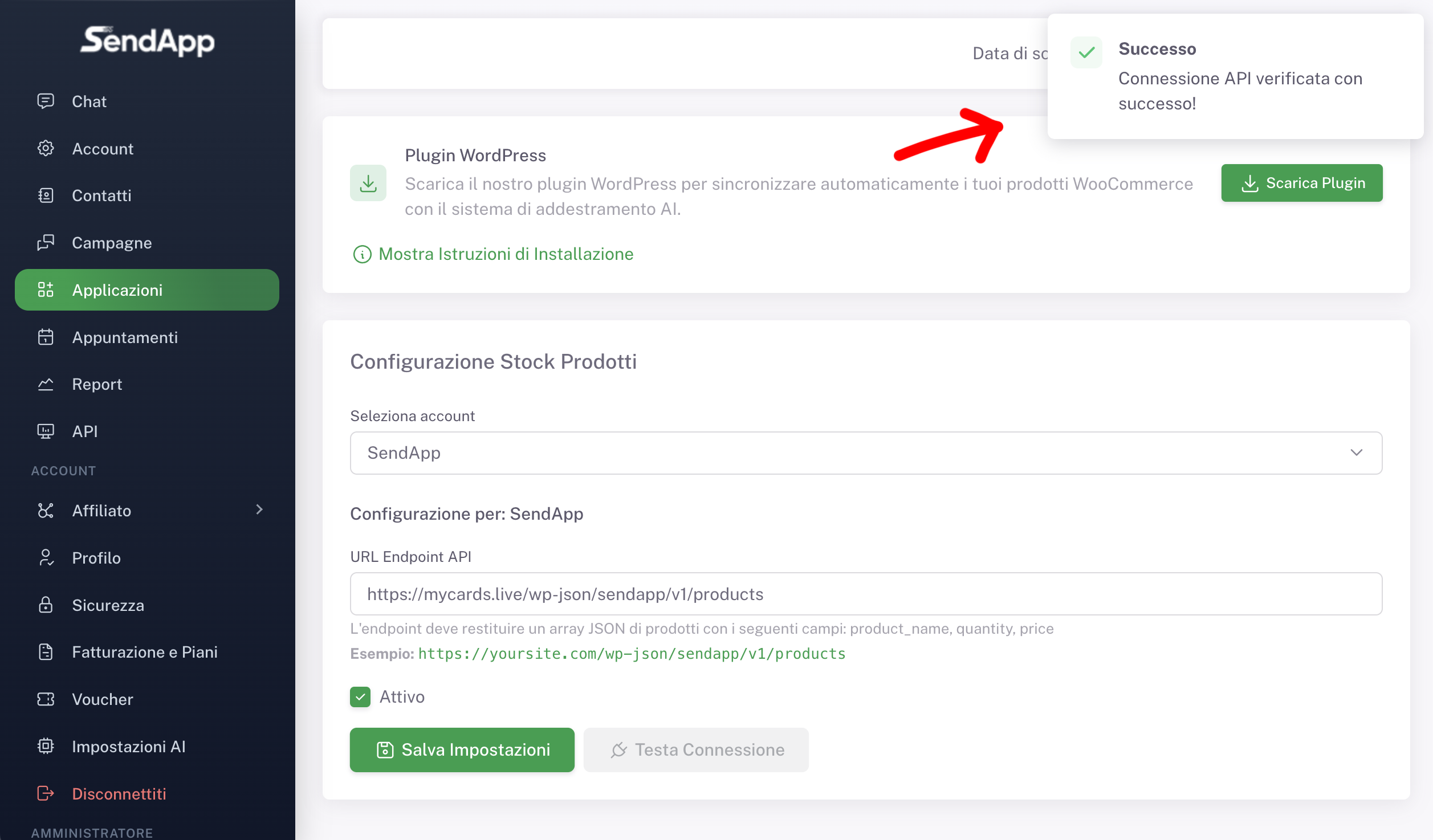
Access the dashboard SendApp Agent and from the side menu select Applications. Locate the app Product Stock and click on Configure. Make sure the app is set to Active and that the correct account is selected.
Step 2 — Download the WordPress plugin
Inside the Product Stock configuration you will find the section WordPress plugins. Click on Download Plugin and wait for the confirmation message. The downloaded file is a plugin in .zip required to generate the product endpoint on your site.
Step 3 — Install the plugin on WordPress
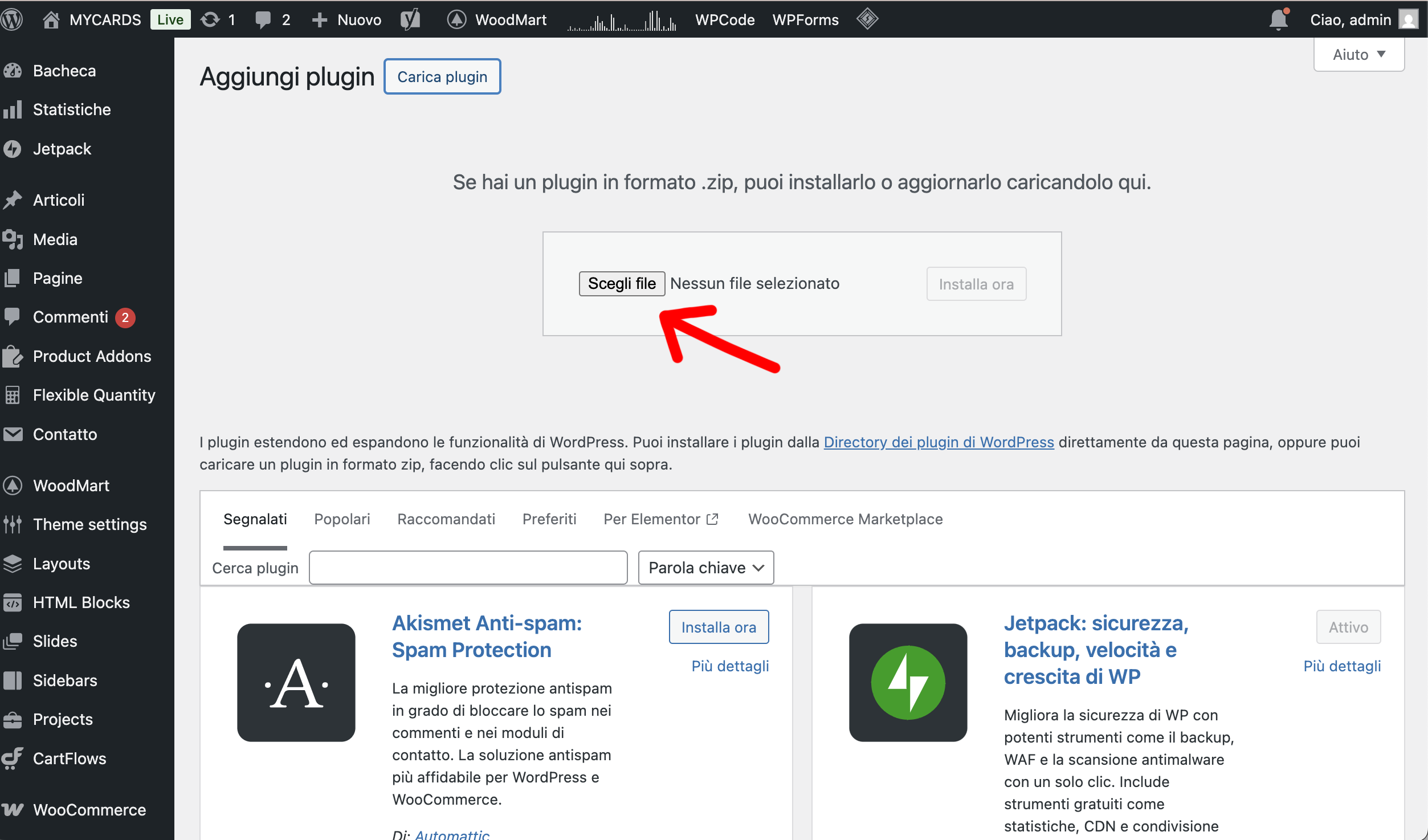
Log in to your WooCommerce site's WordPress admin panel. Go to Plugins → Add Plugin → Upload Plugin, select the file .zip just downloaded and start the installation. Once finished, click on Activate plugin.
Step 4 — Configure the SendApp plugin on WordPress
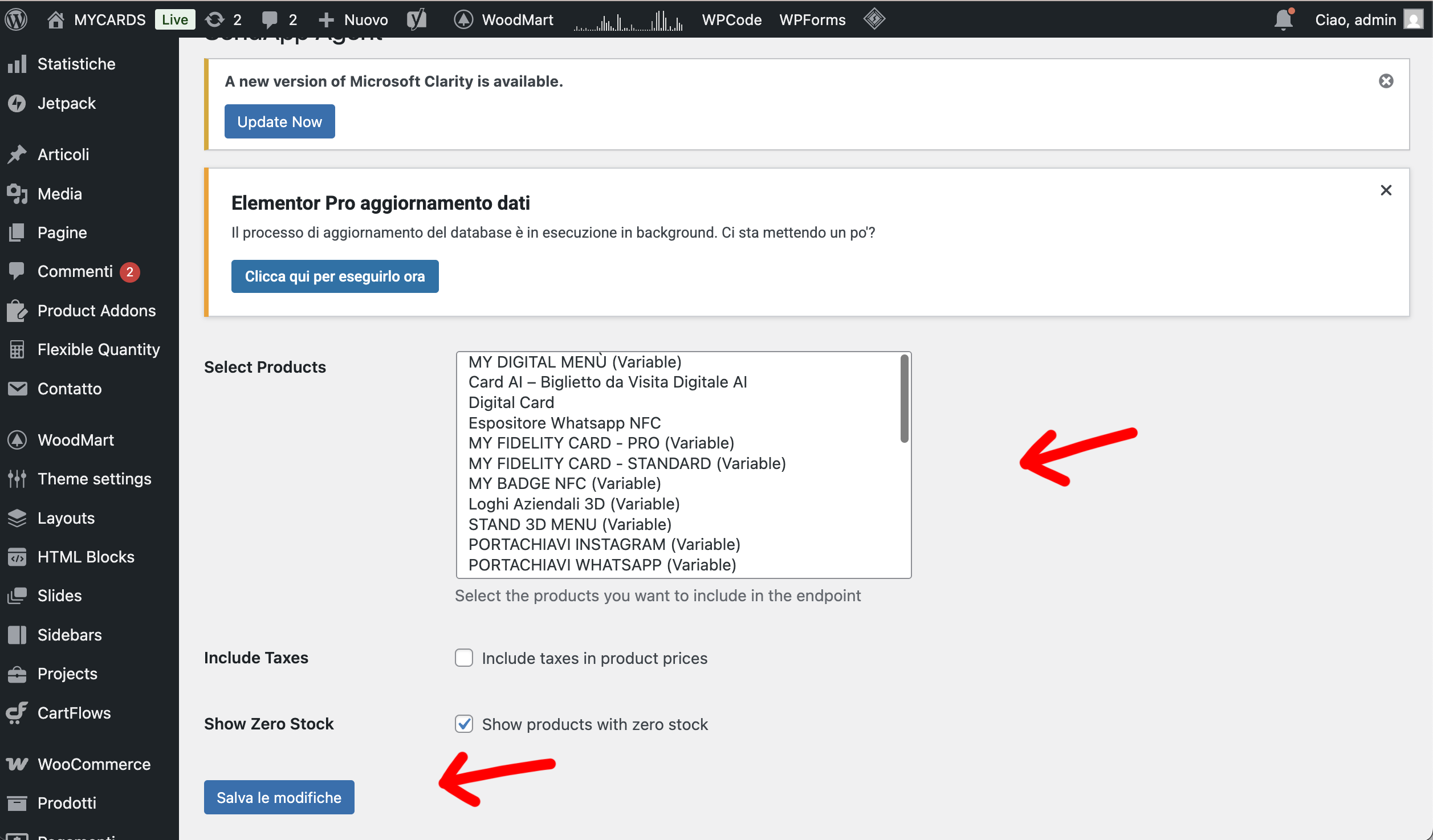
Open the section SendApp Agent from the WordPress menu. Here you can select the products to include in the endpoint, decide whether to include the taxes in the price and whether to also show products with zero stock. Click Save changes. The plugin automatically generates a public URL endpoint:
https://tuosito.it/wp-json/sendapp/v1/products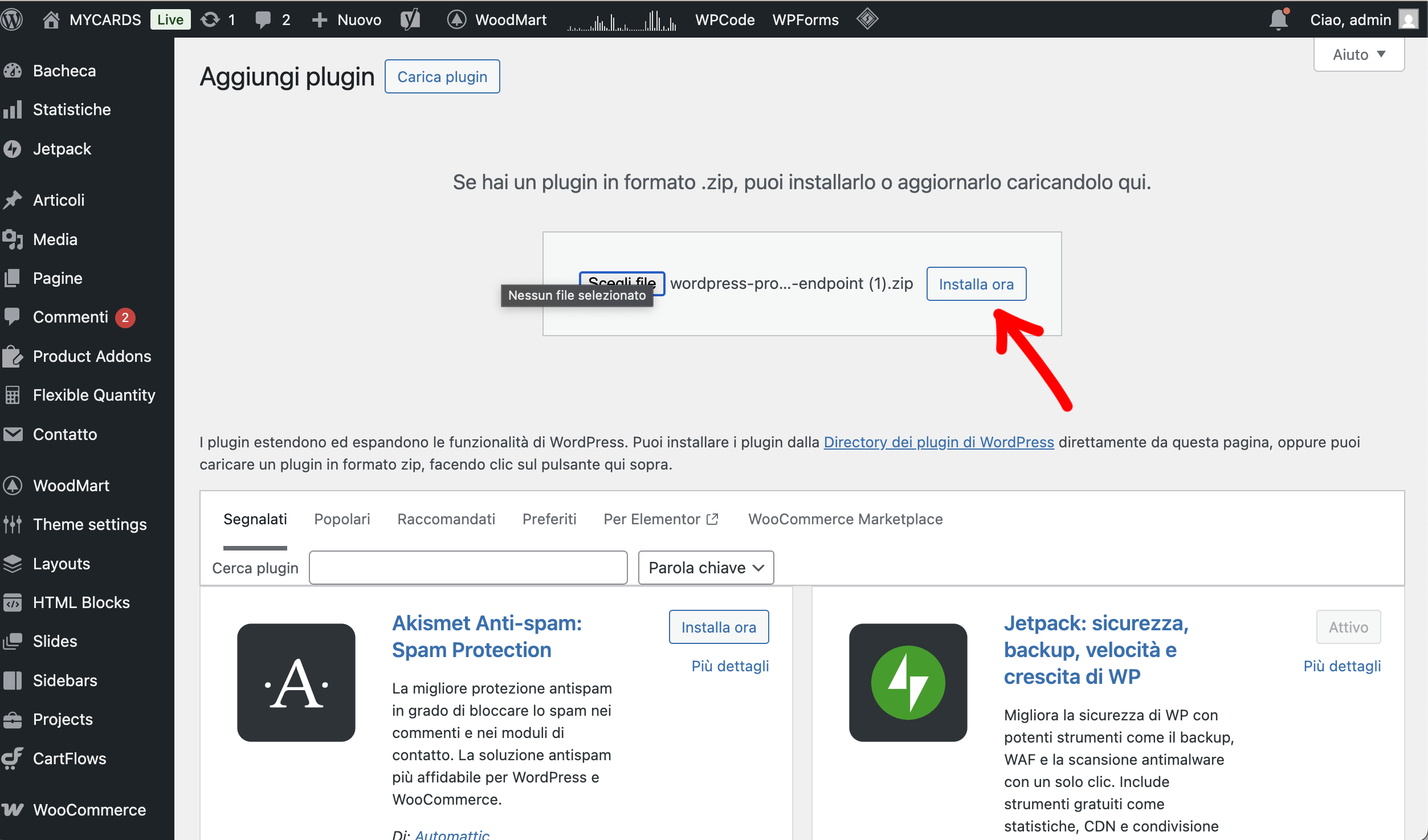
Step 5 — Copy the Products Endpoint
In the same WordPress screen, the field is visible Endpoint URL. Copy the entire URL: you will use it in the SendApp Agent panel to connect the product catalog.
Step 6 — Final configuration on SendApp Agent
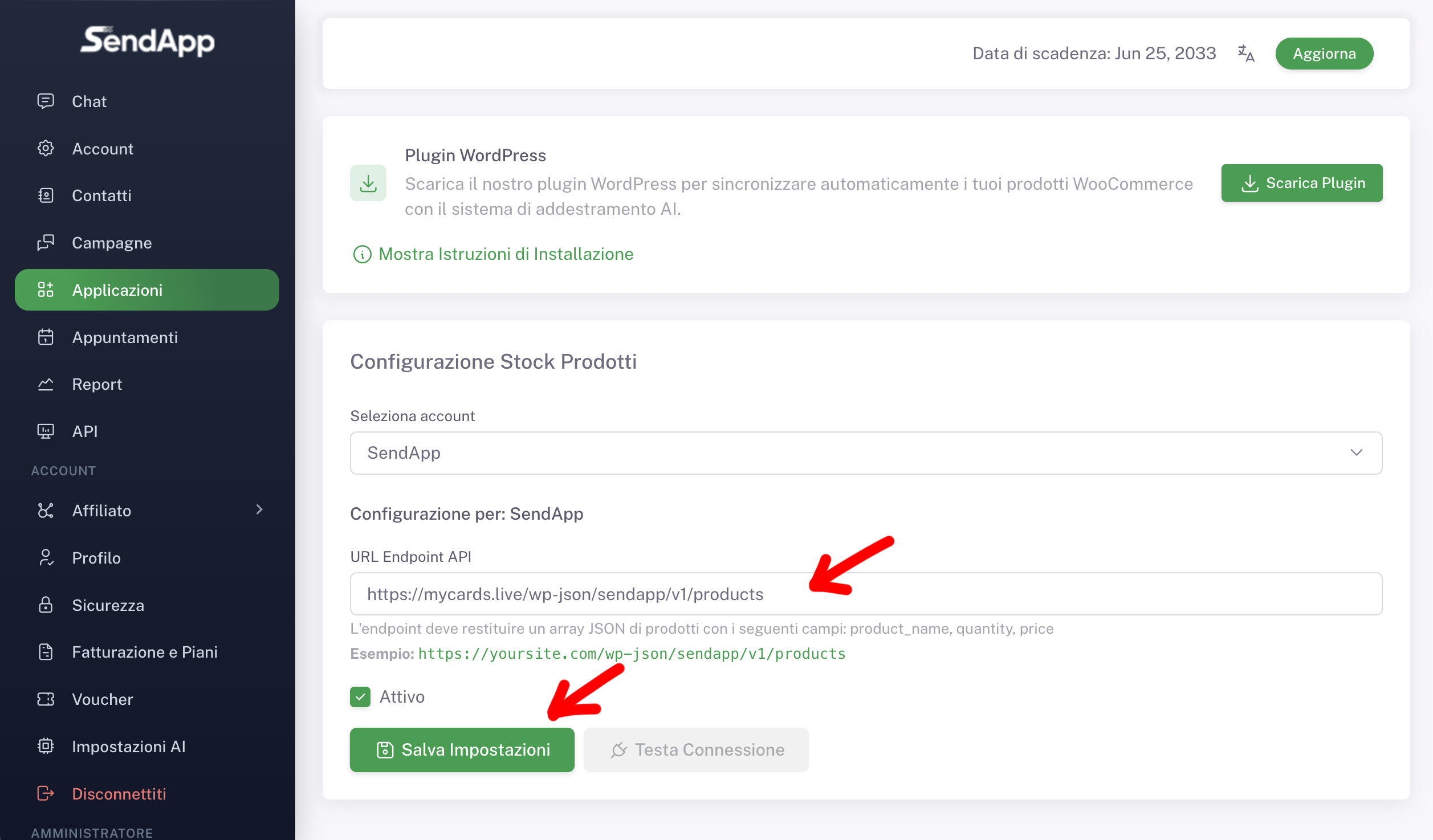
Return to the panel SendApp Agent in the section Product Stock Configuration. Paste the URL into the field API Endpoint URL, verify that the account is correct, activate the configuration and click Save. Use the button Head Connection to verify that the endpoint is responding correctly.
Step 7 — Operation in the Chatbot
Setup complete! SendApp Agent queries the endpoint in real time. The chatbot uses up-to-date WooCommerce data, and users receive automatic responses regarding pricing and availability. No manual updates: every stock or price change on WooCommerce is automatically reflected in the AI responses.
ALL CONFIGURED
Your WooCommerce catalog, always available on WhatsApp
Customers ask for availability and prices on WhatsApp, AI responds with real-time data from your store.
Free trial Instructions for use →Set up WhatsApp →
See Prices →
Ready to get started with SendApp Agent?
Start your free trial: WhatsApp, AI and automations in one dashboard.
Try for free