WhatsApp Business on PC: how to use it from your computer, alone or as a team
In short
How to use WhatsApp Business on PC: WhatsApp Web, the Windows and Mac apps, linked devices and their limits.
WhatsApp Business was born on the phone, but anyone using it for work spends the day in front of a computer. Answering from a PC is possible, free, and takes a few minutes; the point is choosing the right one of three options, because their limits differ, and the limit that matters most isn’t technical: it’s how many people have to answer from the same number.
WhatsApp Business on PC: the three options
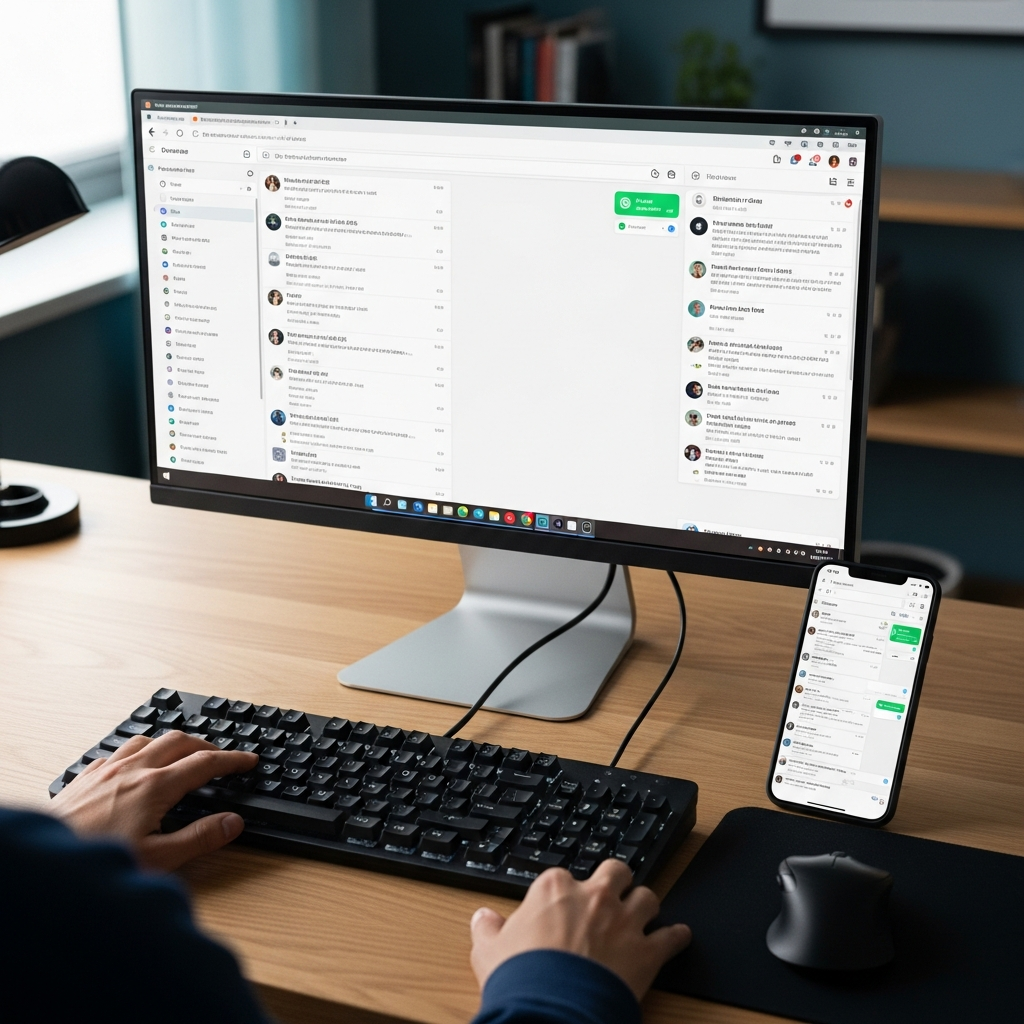
- WhatsApp Web (web.whatsapp.com): opens in the browser, nothing to install. Works on any computer, even a borrowed one.
- The WhatsApp Business app for Windows and Mac: download it from the Microsoft Store or WhatsApp’s site. Same as Web, but with system notifications and a bit more stable if you stay connected all day.
- A platform connected to the number: the number stays yours, but conversations land in a browser inbox where several operators work together, with assignment, notes, auto-replies and AI. This is the option when “answering from a PC” means “three of us answering”.
How to link WhatsApp Business to your computer, step by step
The first two options use the same linked-devices mechanism:
- On the computer, open web.whatsapp.com or the desktop app: a QR code appears.
- On the phone, open WhatsApp Business → menu (⋮ or Settings) → Linked devices → Link a device.
- Scan the QR code. Within seconds the chats appear on the PC.
Since multi-device mode arrived, the phone no longer has to stay on and online: the computer works on its own. You can link up to four devices in addition to the phone. If the phone stays inactive for 14 days, linked devices are logged out and you scan the QR again.
What you can do from the PC, and what you can’t
From the computer you read and reply, send photos, documents and voice notes, use quick replies with “/”, and see labels. Business settings, however, stay on the phone: greeting message, away message, catalog and hours are configured in the mobile app. And three limits don’t go away on the PC:
- No named operators. Four linked devices are four screens on the same identity: you don’t know who replied, you can’t assign a chat to a colleague, there is no history of who did what.
- Broadcast lists stop at 256 contacts and reach only people who have you in their address book. How that changes on the official API.
- Automation stops at greeting and away messages. No keyword replies, reminders or AI. The automatic-messages guide explains what the app does and doesn’t do.
When you need a platform: several operators on the same number
If a salesperson, a support agent and whoever handles orders all answer from the same number, linked devices aren’t enough: you need real operators. With SendApp Agent the number stays yours, connected to Meta’s official API through Meta’s guided sign-up (if you use the WhatsApp Business app, you keep using it on your phone), and conversations land in a shared inbox in the browser:
- named operators with permissions, from 1 to 30 depending on the plan, each with their own login;
- conversation assignment, internal notes, tags and status (open, waiting, closed);
- keyword replies, time-based autoresponders and an AI assistant trained on your content, with handover to a human;
- the other channels in the same inbox: Instagram, Messenger, Telegram, email, SMS, website widget;
- contacts from 1,000 to 30,000 depending on the plan, with lists and segments.
The guide to connecting the number shows the steps with screenshots. Plans start at €19 a month, with a 7-day trial and no card: see pricing.
WhatsApp Web, desktop app or platform: the comparison
| What you need | WhatsApp Web / desktop app | Platform (SendApp Agent) |
|---|---|---|
| Answer from the computer | Yes | Yes, from the browser |
| Phone switched off | Yes, up to 14 days of inactivity | Yes |
| Several people on the number | Up to 4 devices, no names | 1 to 30 named operators, with assignment and notes |
| History of who replied | No | Yes |
| Keyword replies and AI | No | Yes |
| Other channels on the same screen | No | Instagram, Messenger, Telegram, email, SMS, widget |
| Cost | Free | From €19/month, 7-day trial, no card |
Frequently asked questions
Can I use WhatsApp Business on PC without a phone?
You need the phone for the first link, to scan the QR code. After that the computer works even with the phone off or offline, until the phone stays inactive for 14 days.
Can I use WhatsApp Business on two computers?
Yes: up to four linked devices at the same time, across computers, tablets and browsers. Each one sees the same chats with the same identity.
Is WhatsApp Business for PC free?
Yes, both WhatsApp Web and the Windows and Mac app. You pay only if you move to a platform, to get operators, automation and AI.
What’s the difference between WhatsApp Web and the desktop app?
They do the same things. The app is installed, has system notifications and holds up better through a full working day; Web needs no installation and works on any computer.
Can I use WhatsApp Business on PC with several operators?
With linked devices alone, no: there are no operators, only screens. With the number connected to a platform, yes, with names, permissions and conversation assignment.