

Before you start
- Active SendApp Agent account
- Access to AlfaDocs with permission to generate an API key
- A channel connected in SendApp for sending (WhatsApp, SMS or email)
Who it is for and what doesn’t change
It is for dental practices, dentists, clinics and medical centres that already work with AlfaDocs and want fewer no-shows without changing habits. The way the practice works doesn’t change: the calendar stays in AlfaDocs and you keep booking there. SendApp has read-only access.
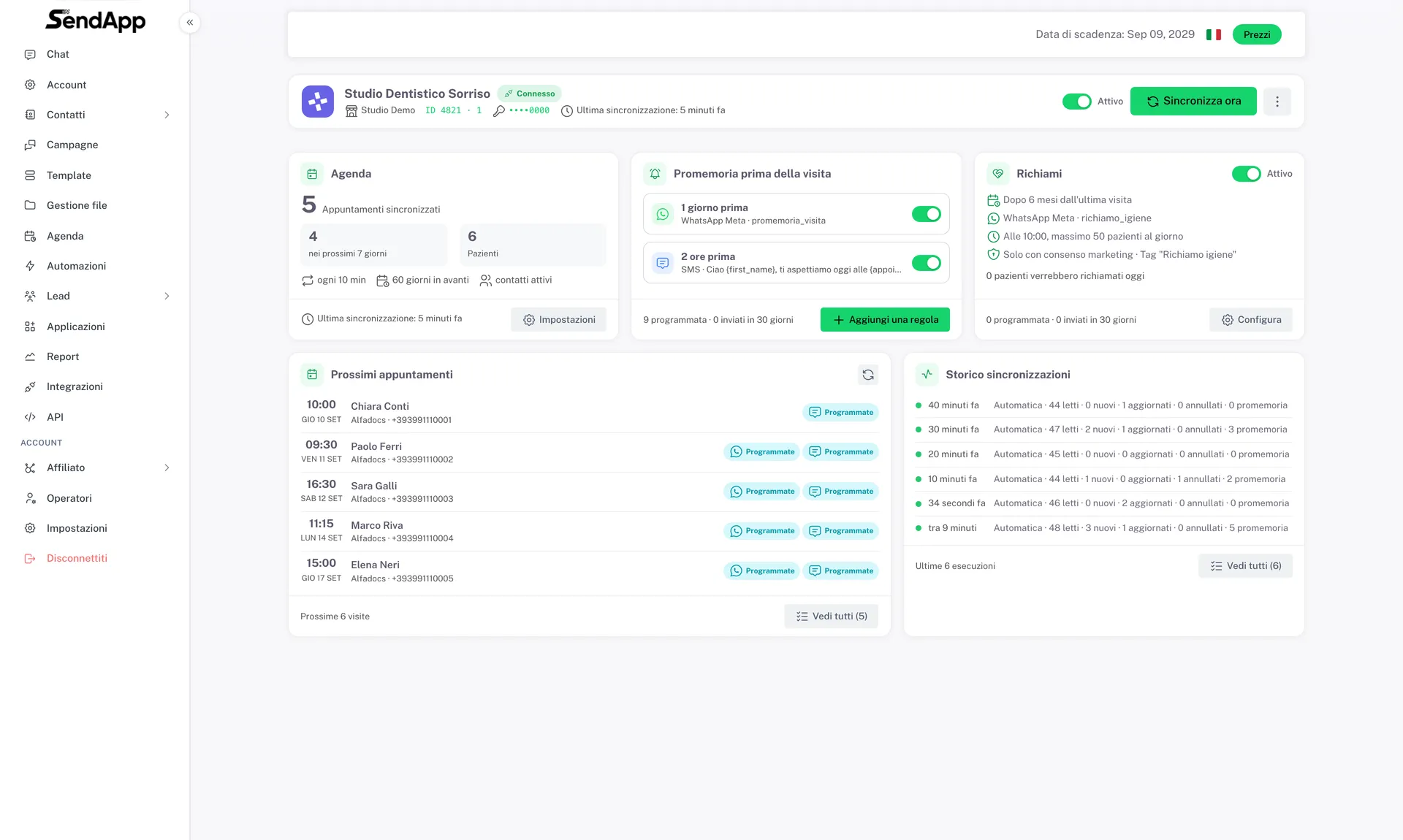
What it does in practice
- The calendar arrives in SendApp
- Every appointment becomes a row in the SendApp Calendar, with patient name, date, time, type of treatment and doctor. If an appointment is moved in AlfaDocs it moves here too; if it is cancelled, it is cancelled here too.
- Reminders go out on their own
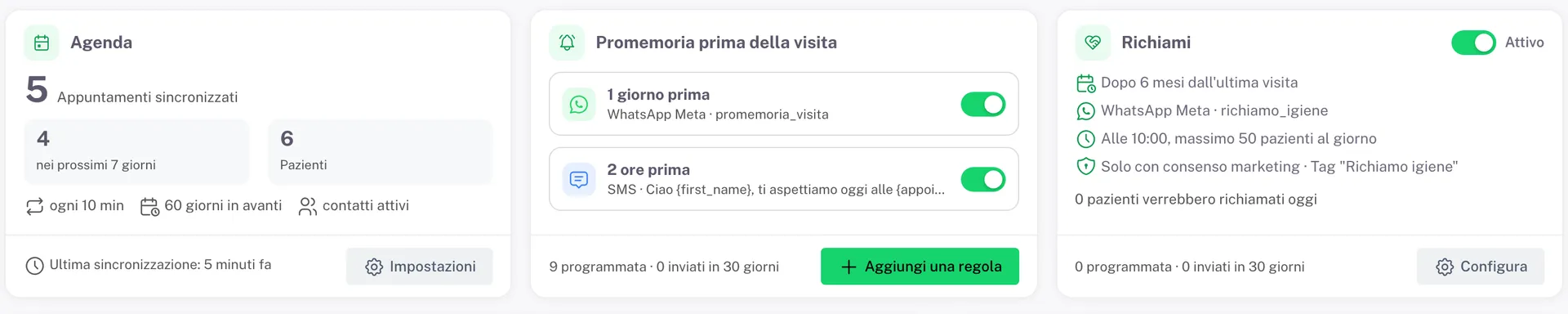
- Up to five rules. A typical setup: a WhatsApp template the day before and an SMS two hours before. When the visit moves, the reminder moves with it; when it is cancelled, the reminder is cancelled. The patient never gets a reminder for a visit that no longer exists.
- Recalls bring patients back
- Anyone who hasn’t been in for six months and has no future appointment receives an invitation to book, with a daily cap so reception isn’t flooded, and respecting the marketing consent read from the patient record.
- The address book fills itself
- Name, phone, email and date of birth land in SendApp Contacts with the AlfaDocs tag, ready for campaigns and automations.
How to connect it
You need an AlfaDocs API key. The practice generates it in a minute.
- 1
Create the key in AlfaDocs
In AlfaDocs go to Settings → Practice → Keys and press the + button to generate a new one. AlfaDocs shows the key only once: copy it right away, if you close the window you have to generate another.
- 2
Paste it into SendApp
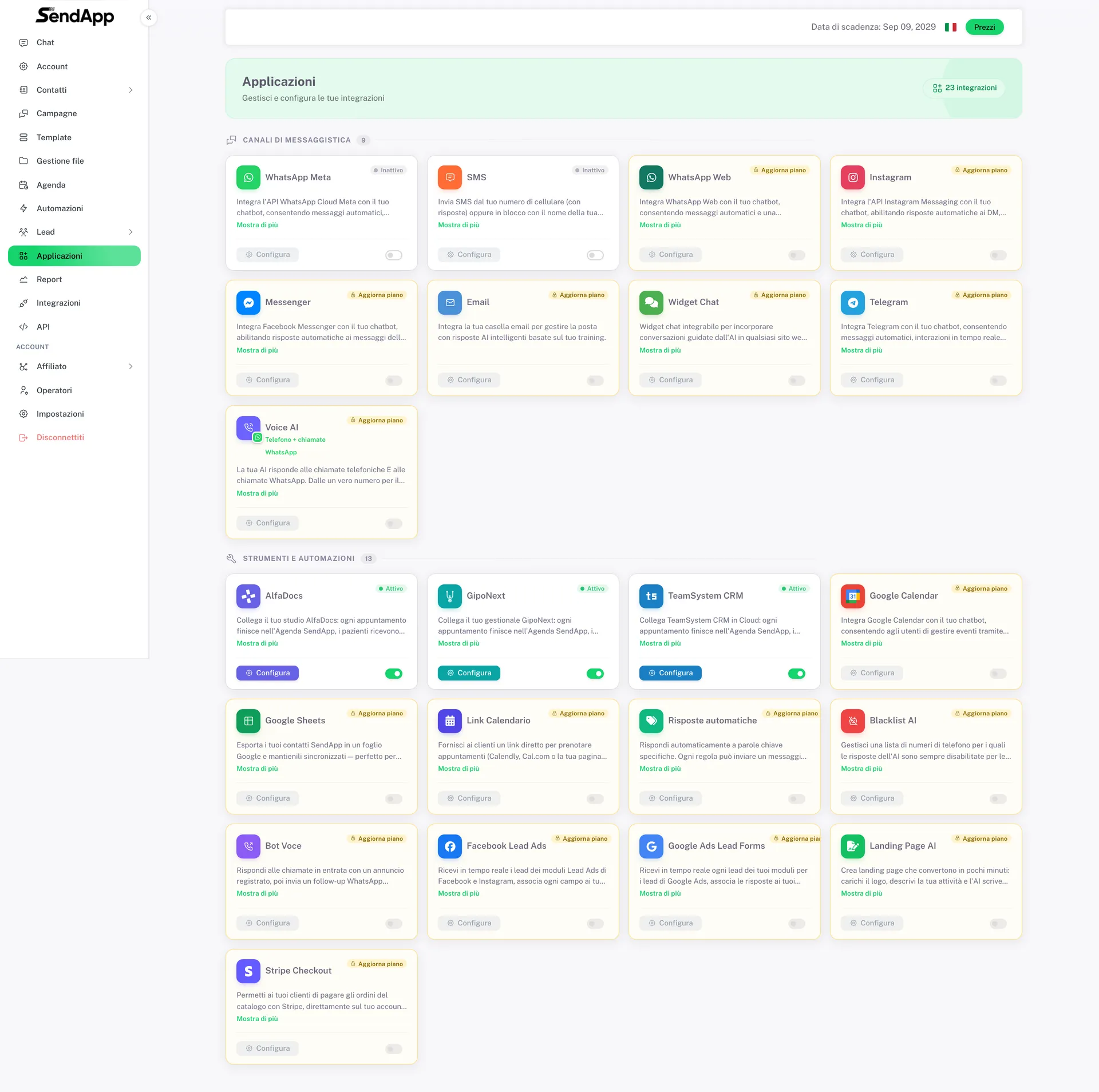
In SendApp go to Applications → AlfaDocs → Connect now. Paste the key and choose the practice’s time zone: it decides when a reminder goes out.
- 3
The first sync
SendApp checks the key, recognises the practice and starts reading the calendar. The first appointments appear within seconds; the history continues in the background.
A key is valid for a single archive. If the practice has more than one, create it from the archive whose appointments you want to sync, and connect each archive to a separate SendApp account.
Reminders before the visit
Add them from Reminders before the visit → Add rule. For each rule you choose three things:
| Choice | What it means |
|---|---|
| How far ahead | 2 hours, 1 day, 2 days… or a custom interval |
| Channel | WhatsApp, SMS or email |
| Message | an approved WhatsApp template, or free text for SMS and email |
In the text you use placeholders, which SendApp replaces for each patient: {first_name}, {name}, {appointment_date}, {appointment_time}, {operator}. Example: “Hi {first_name}, we look forward to seeing you on {appointment_date} at {appointment_time} at Studio Sorriso.”
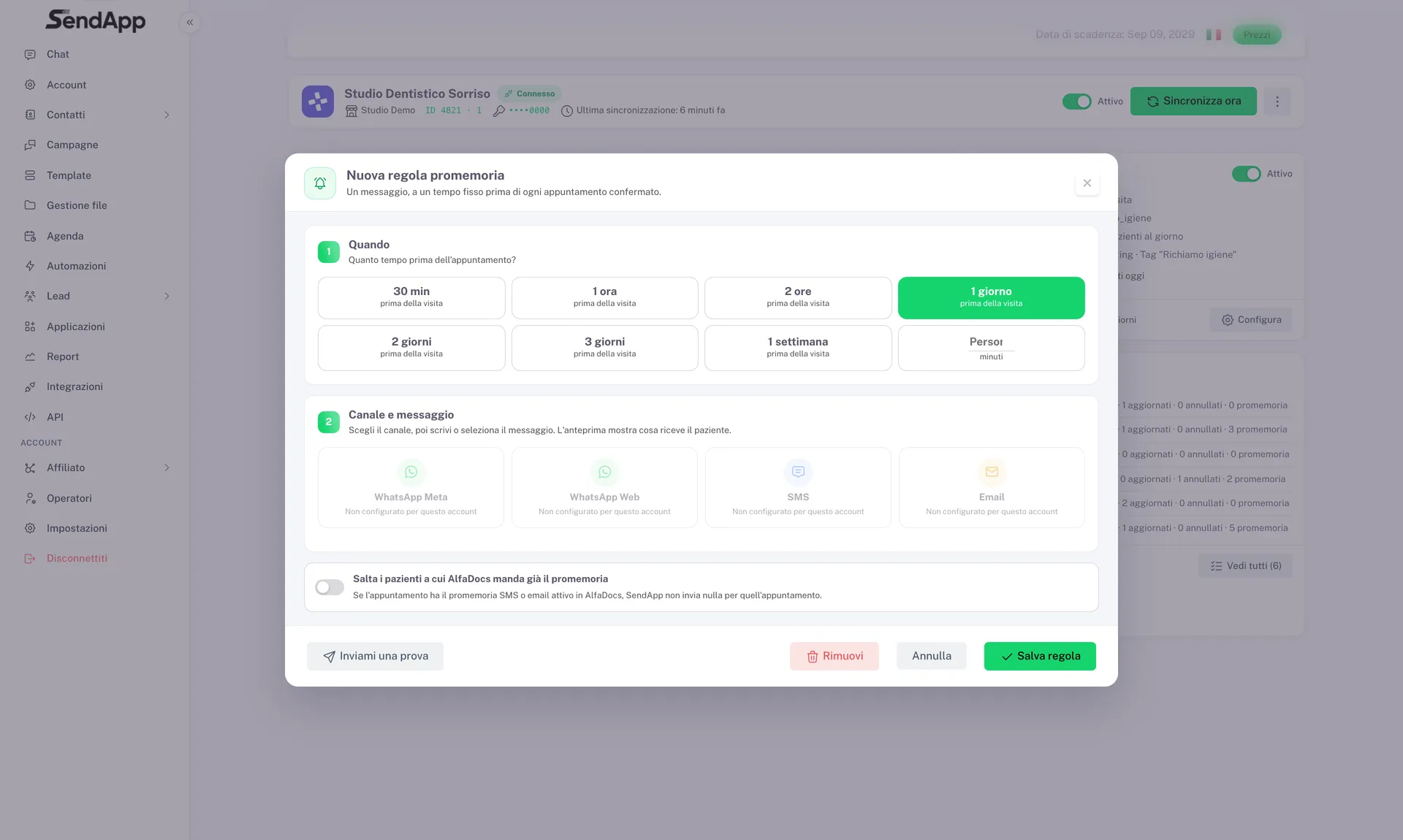
The preview shows the message as the patient will receive it, and the test button sends it to a number you choose: use it before switching the rule on. There is also a switch to skip patients AlfaDocs already reminds by SMS or email, so nobody gets it twice.
A rule that would fall in the past is skipped. If you set “one day before” and the visit is in two hours, that reminder doesn’t go out: it would arrive late and the patient would read it as a mistake.
Recalls
They bring back people you haven’t seen for a while. Switch them on from Recalls.
| Setting | What it is for |
|---|---|
| Months since last visit | the threshold: six months is the typical hygiene recall |
| Window | how far back to look beyond the threshold |
| Send time | when they go out, usually in the morning |
| Maximum per day | protects reception and the quality of the WhatsApp number |
| Don’t repeat for | after how many months the same person can be recalled again |
| Only with marketing consent | recommended: GDPR-compliant |
| Skip those who already have an appointment | they are already coming back, no need to invite them |
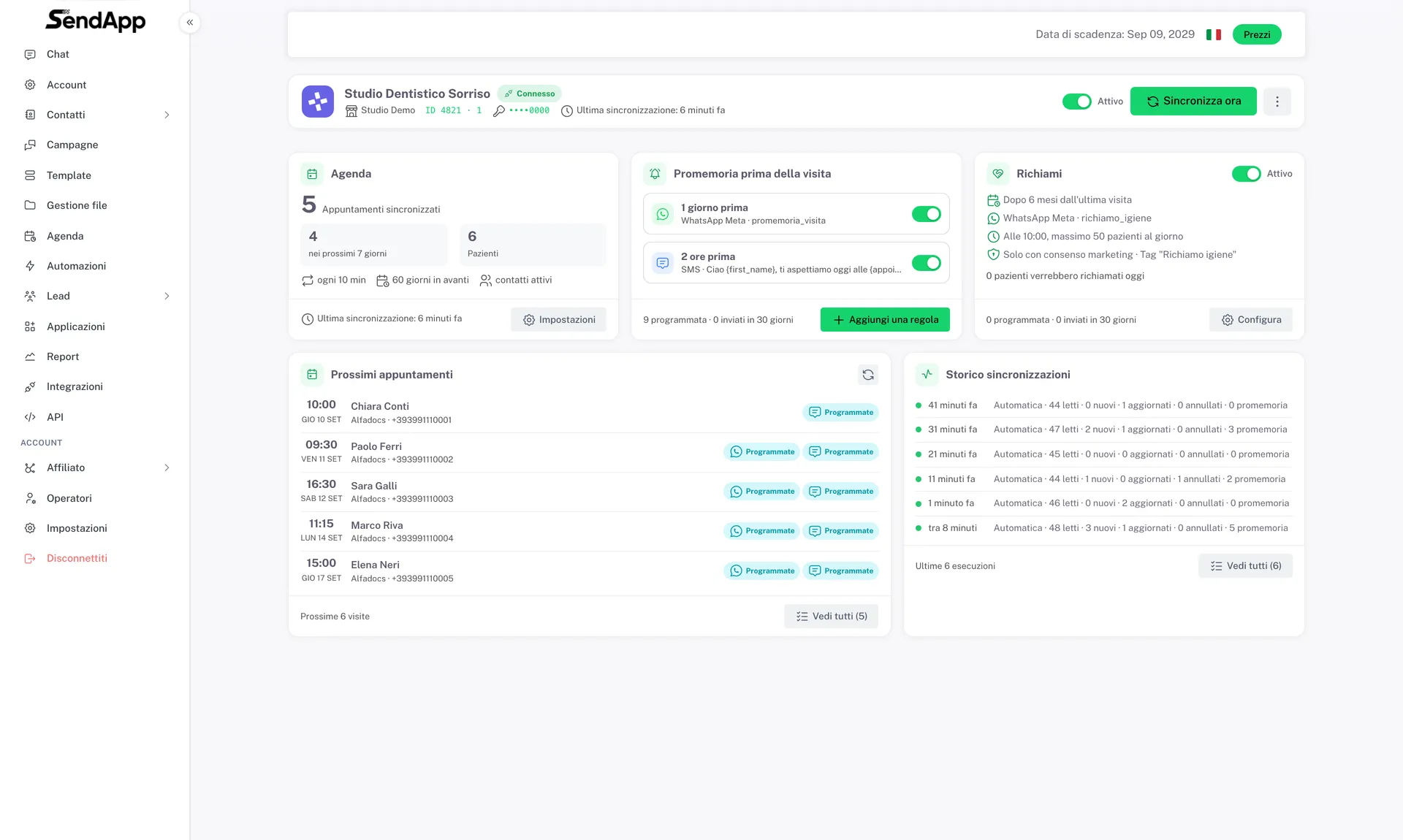
Sync settings
| Setting | Default | What it does |
|---|---|---|
| Days ahead | 60 | how far ahead to read the calendar |
| Every how many minutes | 10 | check frequency |
| Import history | on, 12 months | fills the history and feeds the recalls |
| Skip teleconsultations | — | excludes visits not held at the practice |
| Create contacts | on | fills the address book |
| Tag | AlfaDocs | the label on imported contacts |
| Default prefix | +39 | applied to numbers saved without a prefix |
| Doctors | all | limits the sync to some doctors |
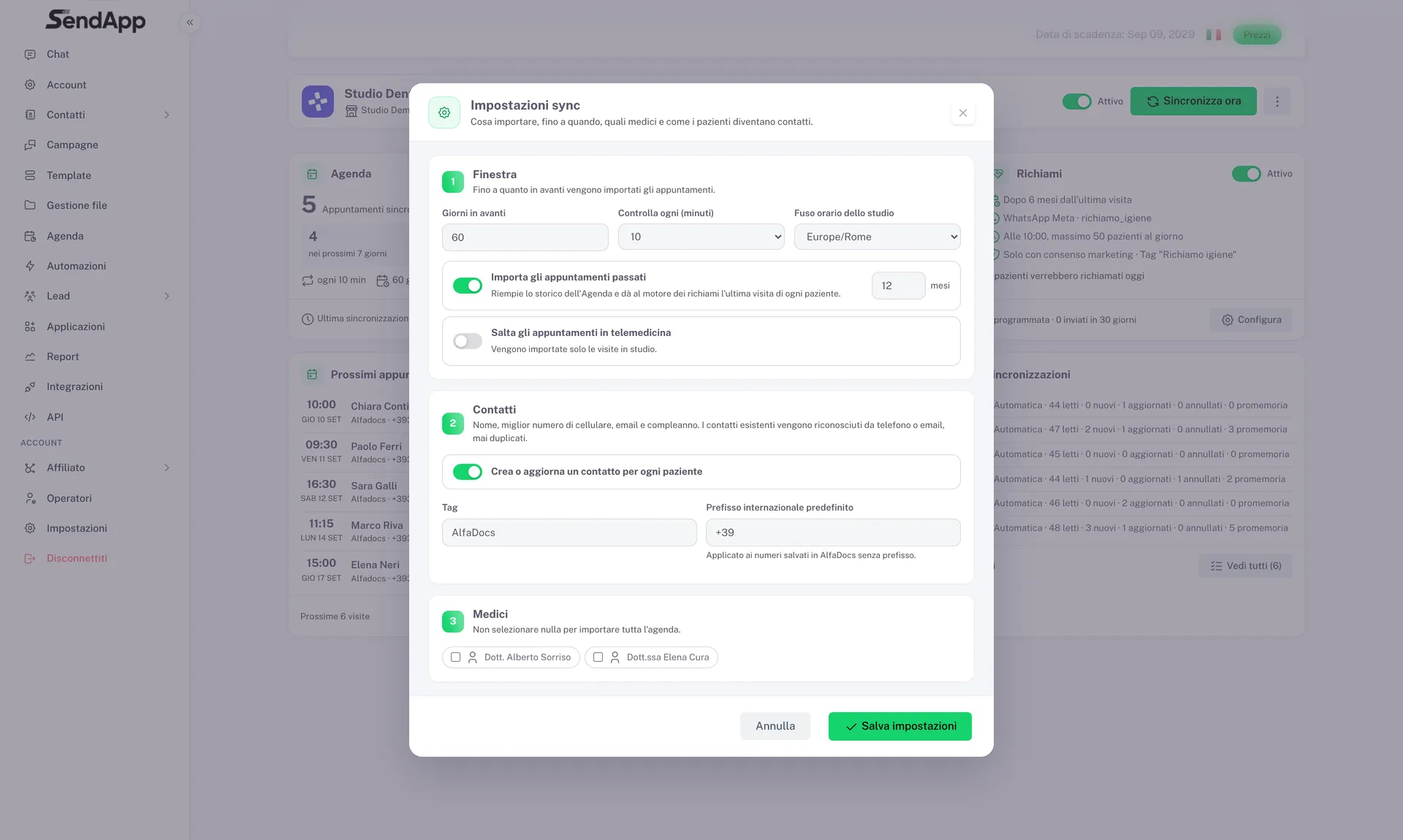
How to check it works
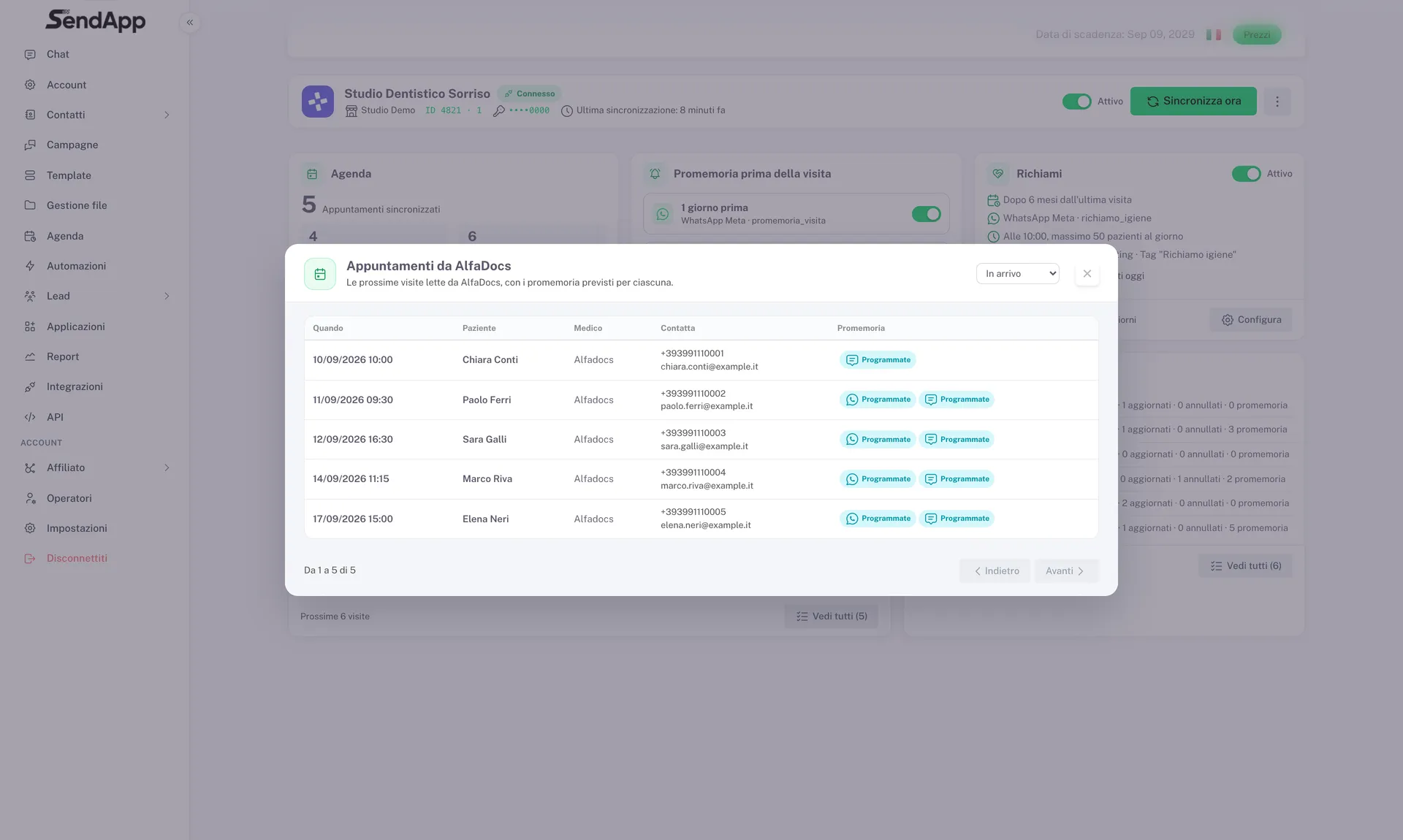
- The figures at the top: synced appointments, how many in the next 7 days, scheduled reminders, recalls. If they are still zero after a few minutes, something is wrong.
- Upcoming appointments: the list of the next visits read from AlfaDocs, with the reminders planned for each. Here you see straight away whether the rules catch the right appointments.
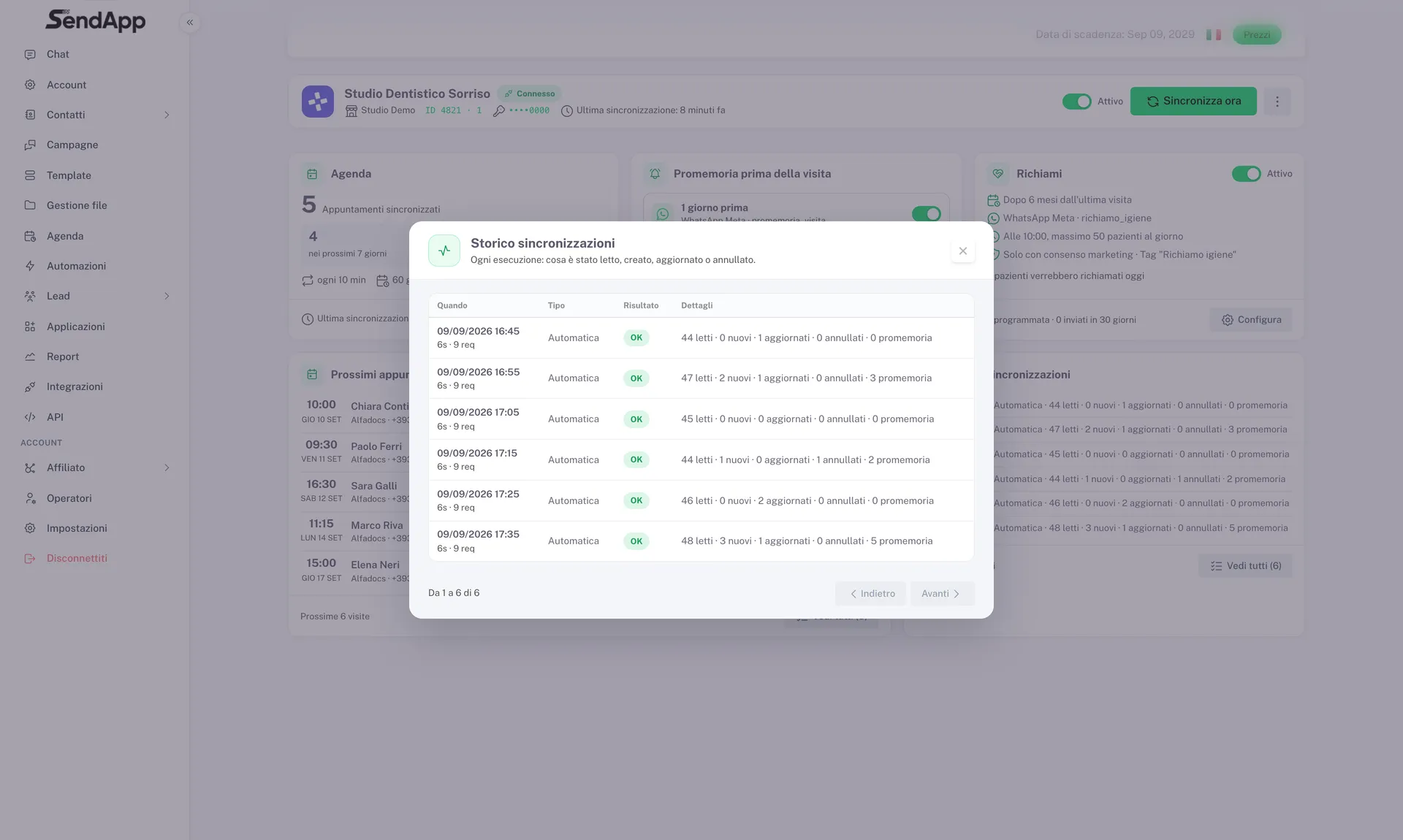
- Sync history: every run, with what was read, created, updated or cancelled. If there is a problem it shows up here, with a plain-language message.
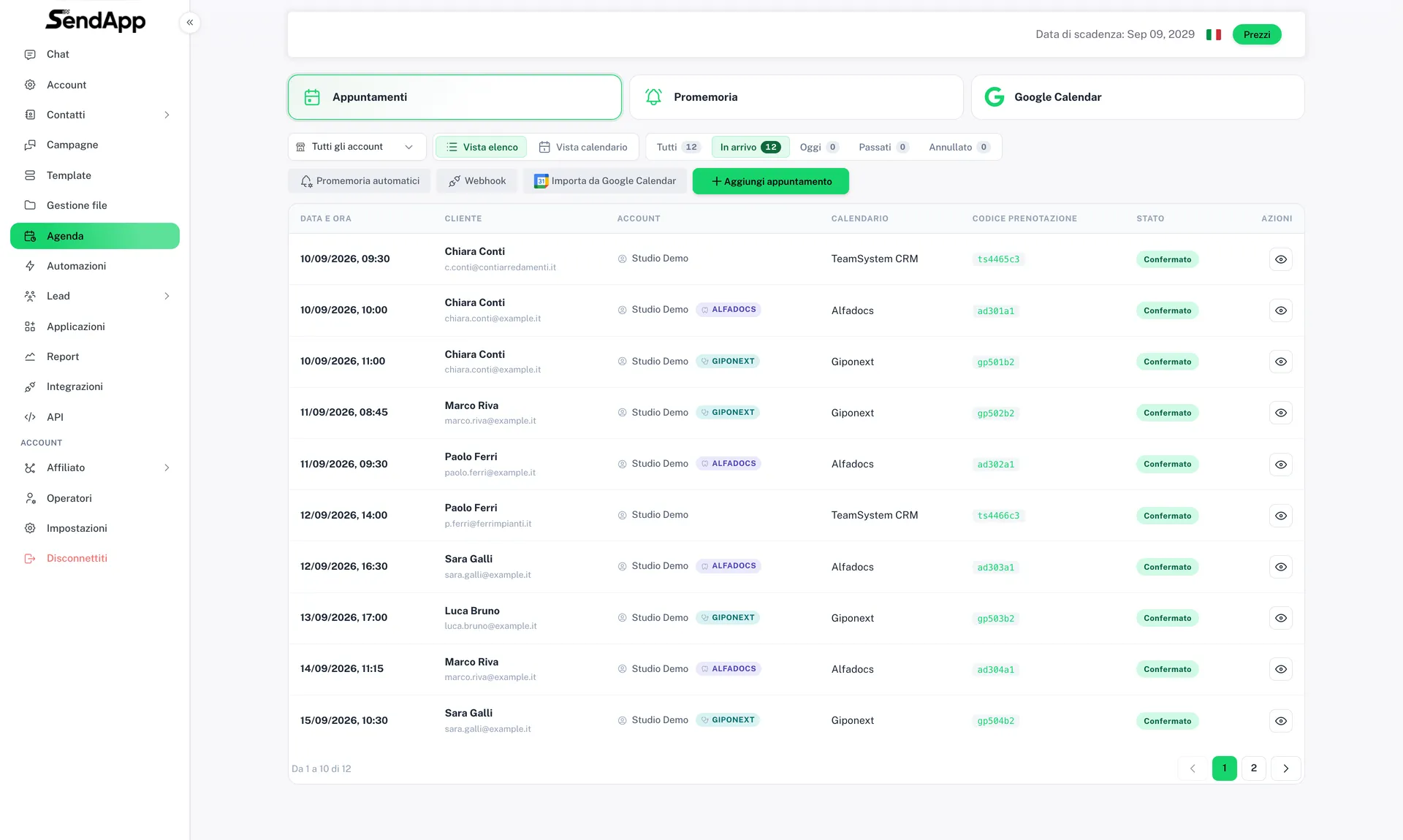
In the Calendar every imported appointment carries the AlfaDocs badge, so it stands out from those entered by hand.
Limits to know
- Read-only: you cannot book from SendApp into AlfaDocs.
- One key, one archive: practices with several archives must be connected separately.
- Up to 5 reminder rules per practice.
- Not instant: AlfaDocs doesn’t notify changes, so SendApp checks every few minutes. An appointment booked now appears by the next run.
- Past reminders are not recovered: if you switch the integration on today, tomorrow morning’s visits may not get the “one day before” reminder.
Ready to put it into practice?
Open SendApp and follow the steps in this guide. Need help? Support is one message away.