Guide/SendApp Agent/Templates
Create and get a template approved
On the official API, to message a customer first you need a template approved by Meta. SendApp Agent lets you create templates, add variables and buttons, and submit them to Meta for approval, then syncs their status.
Updated on June 16, 2026 · 7 min read
Before you start
- A connected WhatsApp number (WABA)
- A clear idea of the message and its category
What templates are and when you need them
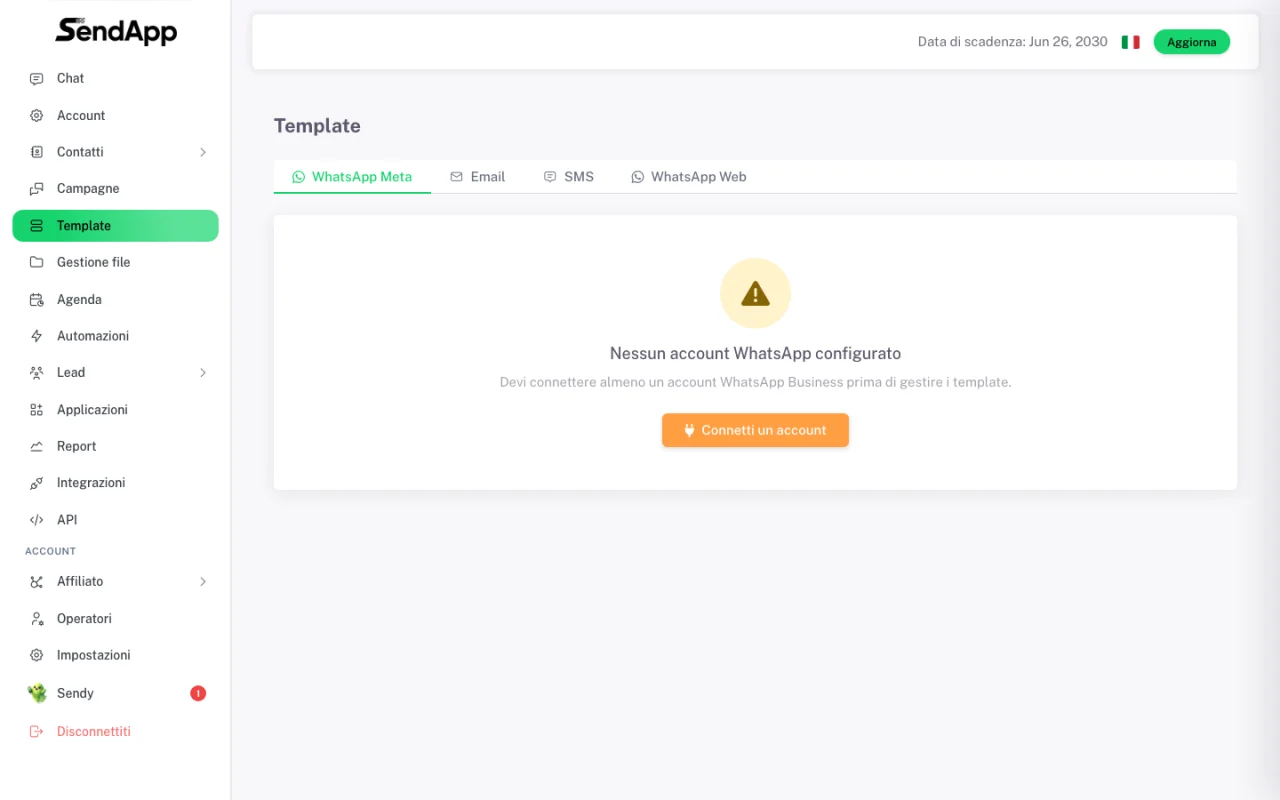
On the official API, to message a customer first (a business-initiated message) you need a template pre-approved by Meta. When the customer messages you instead, you have a 24-hour free conversation window without a template. SendApp uses Meta’s exact rules: every template you create is sent to Meta for approval (usually a few minutes, max 24h). Prerequisite: a WhatsApp number connected to the official API (see Connect WhatsApp).
The 3 categories (and what they cost)
The right category is the first thing: it changes the rules and, above all, the cost per message.
| Category | When | Cost |
|---|---|---|
| UTILITY | Order confirmations, shipping updates, appointment reminders — no promotions | The lowest |
| MARKETING | Promos, offers, news, purchase invitations | 5-7× utility |
| AUTHENTICATION | OTP codes only | Dedicated |
Since 2025 Meta recategorizes on its own: if a UTILITY template has a promotional tone, it’s approved but moved to MARKETING — and you pay 5-7× more without noticing. Don’t “disguise” promos as utility: it no longer works.
Create the template step by step
- 1
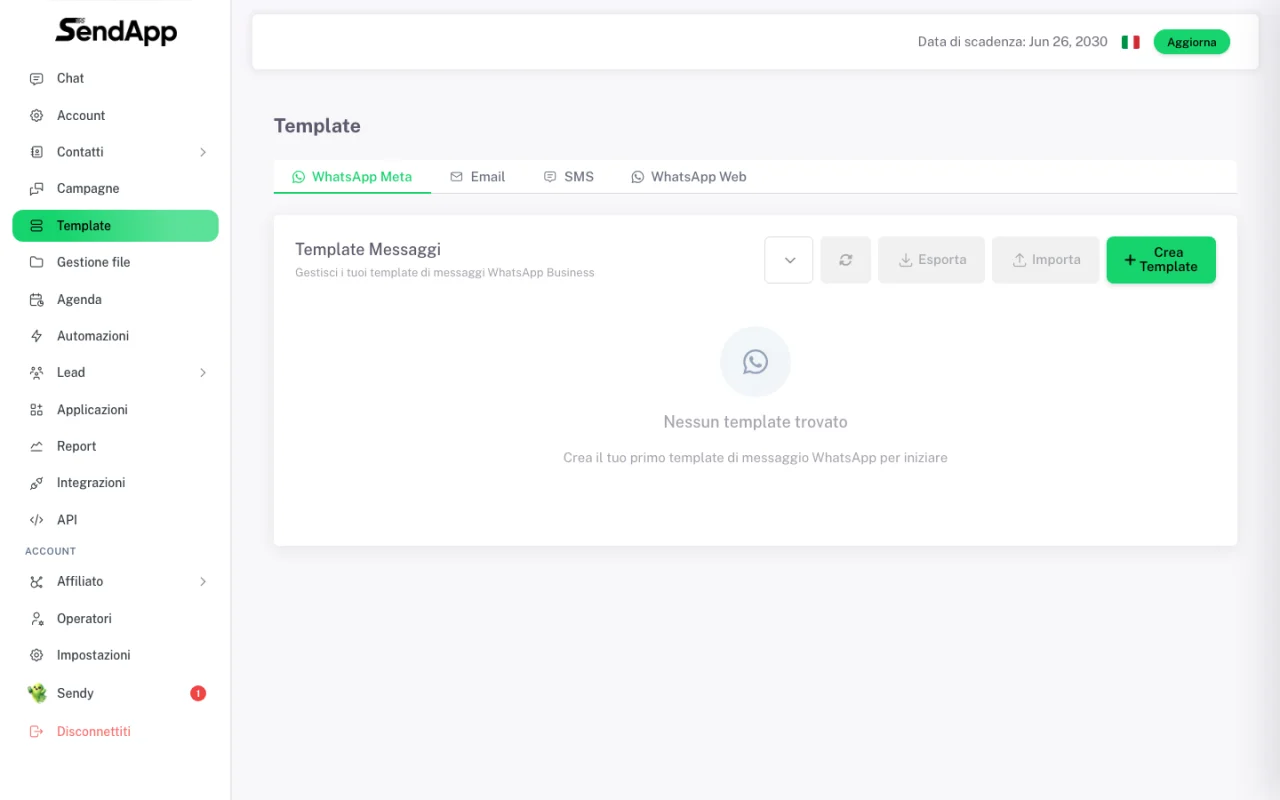
Open Templates → WhatsApp Meta and click “Create Template”
From here you manage all templates with their approval status.
- 2
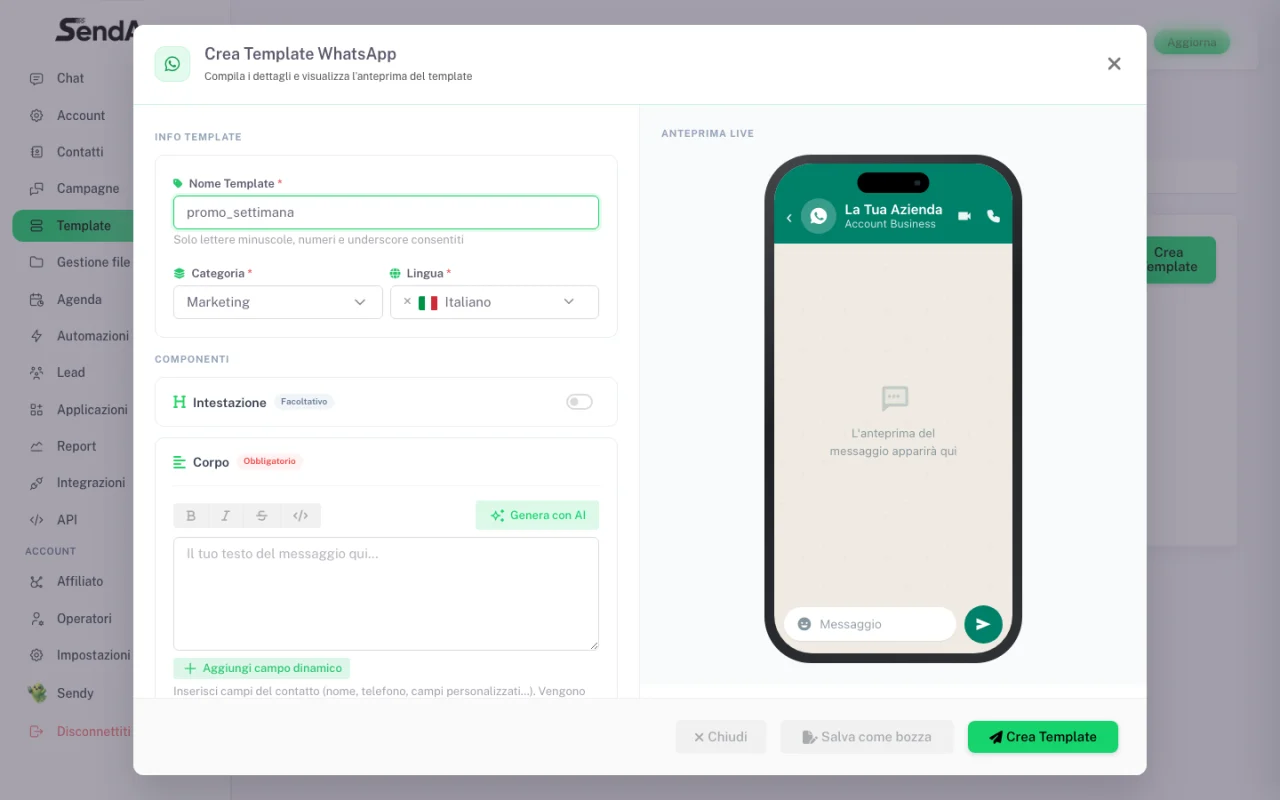
Name, category and language
Give it a name (lowercase, numbers and underscores only, e.g. weekly_promo), choose the category (Utility or Marketing — mind the cost) and the language.
- 3
Write the body and insert variables
Write the message and use “Add dynamic field” to insert variables {{1}}, {{2}}. The live preview on the right shows the message as the customer will see it. There’s also “Generate with AI” to start from an automatic draft.
- 4
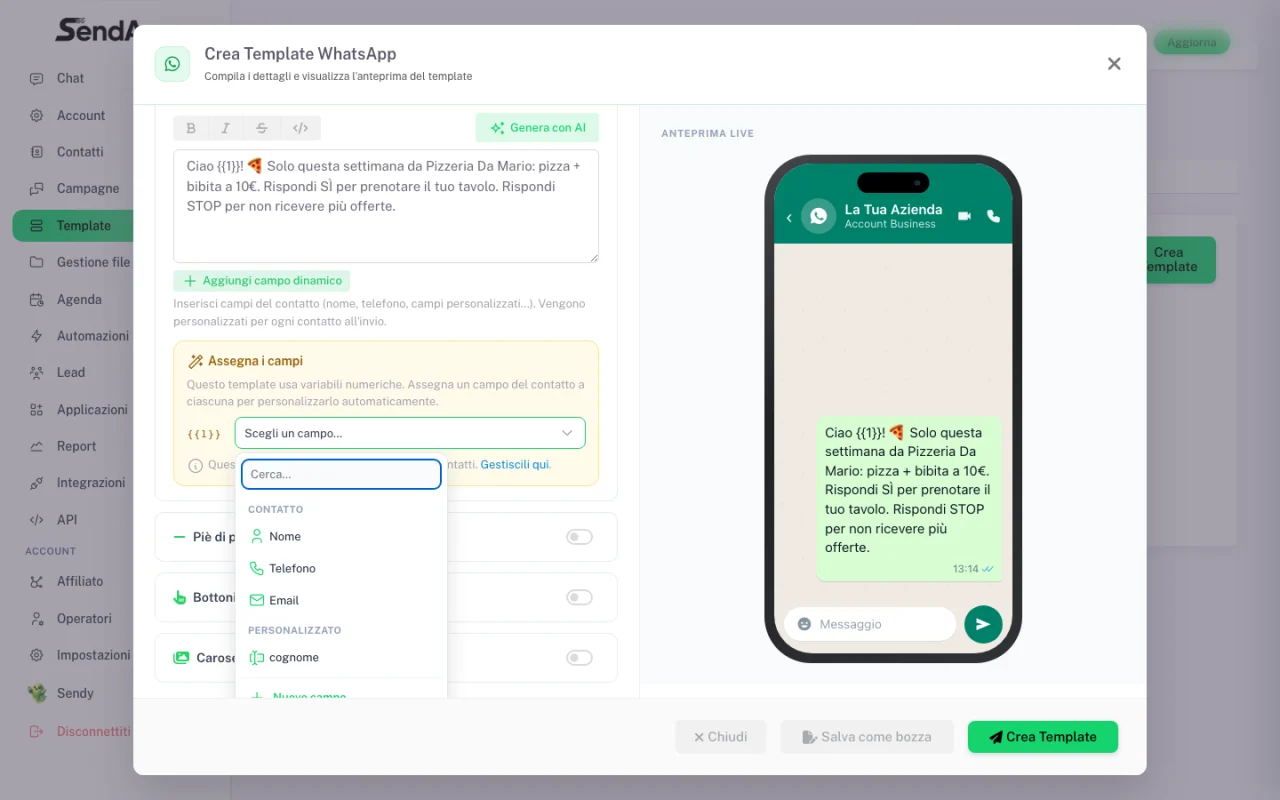
Map the fields to the variables
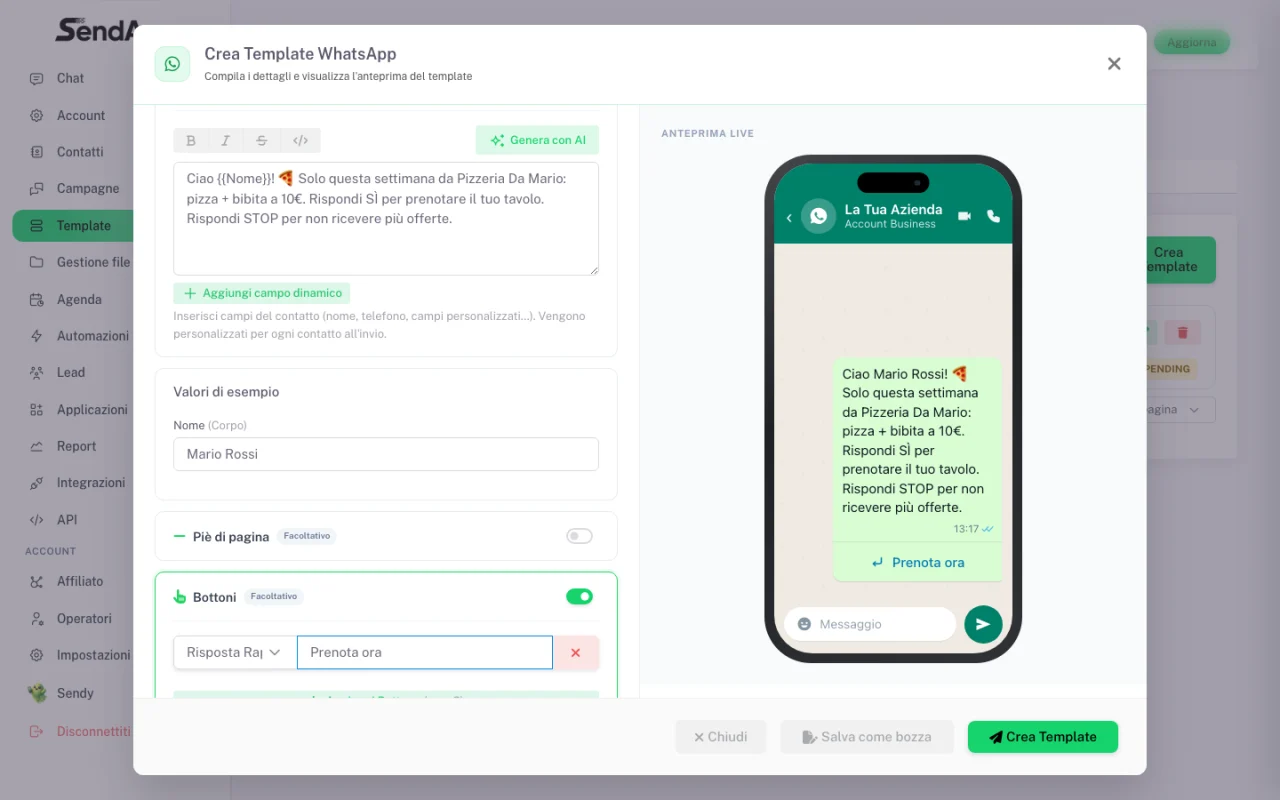
Link each variable to a contact field (Name, Phone, Email or the custom fields imported from CSV): this way each customer gets THEIR message.
- 5
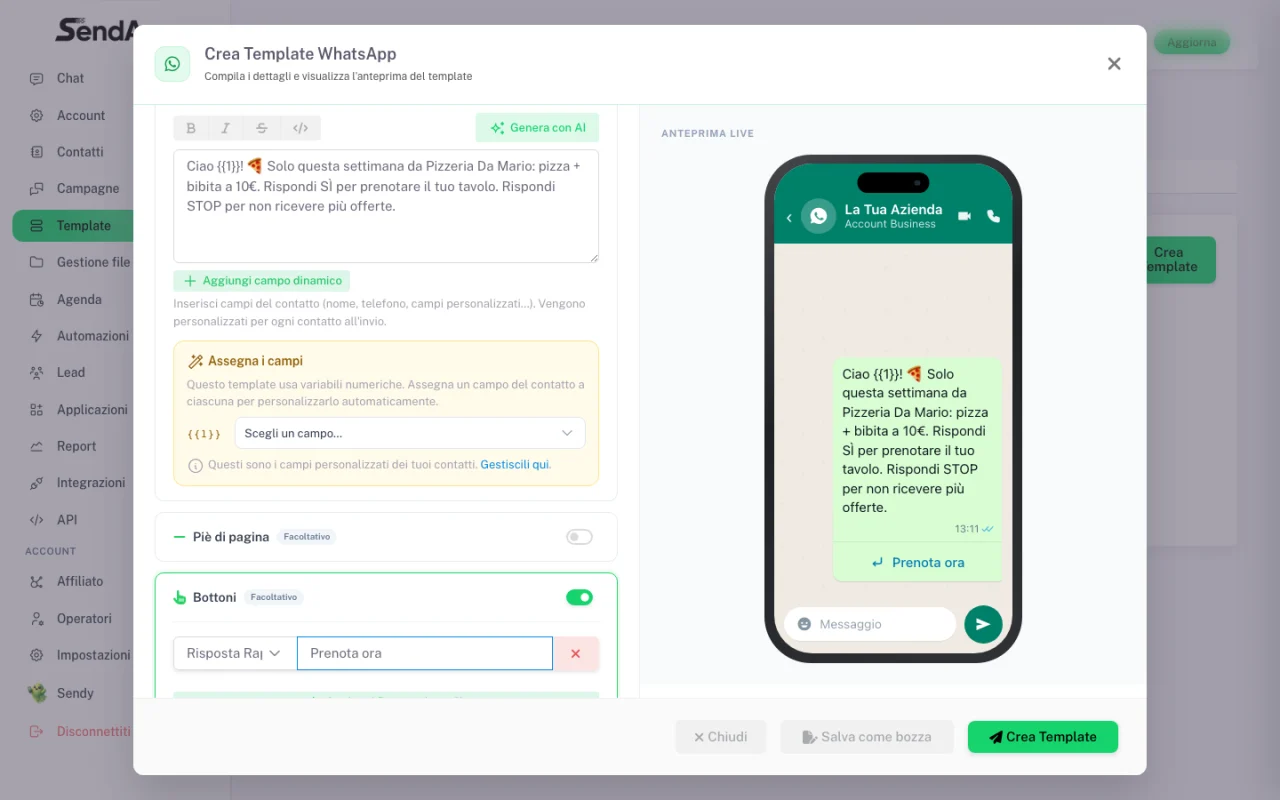
Add the buttons
Up to 3 quick-reply buttons, or URLs. A “Book now” button appears right in the chat: button CTAs convert better than links in the text.
- 6
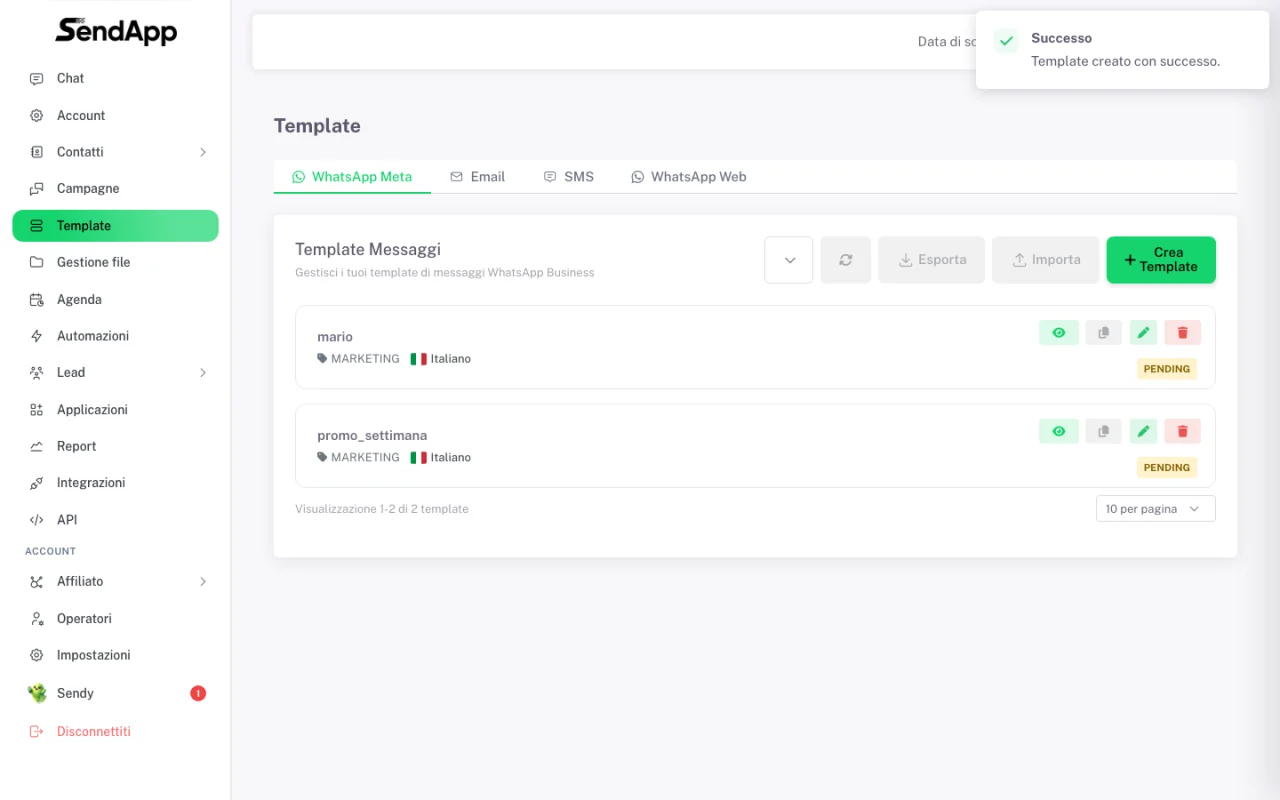
Send to Meta: PENDING status
Click “Create Template”: it’s sent to Meta for approval. The PENDING status usually resolves in a few minutes (max 24h).
- 7
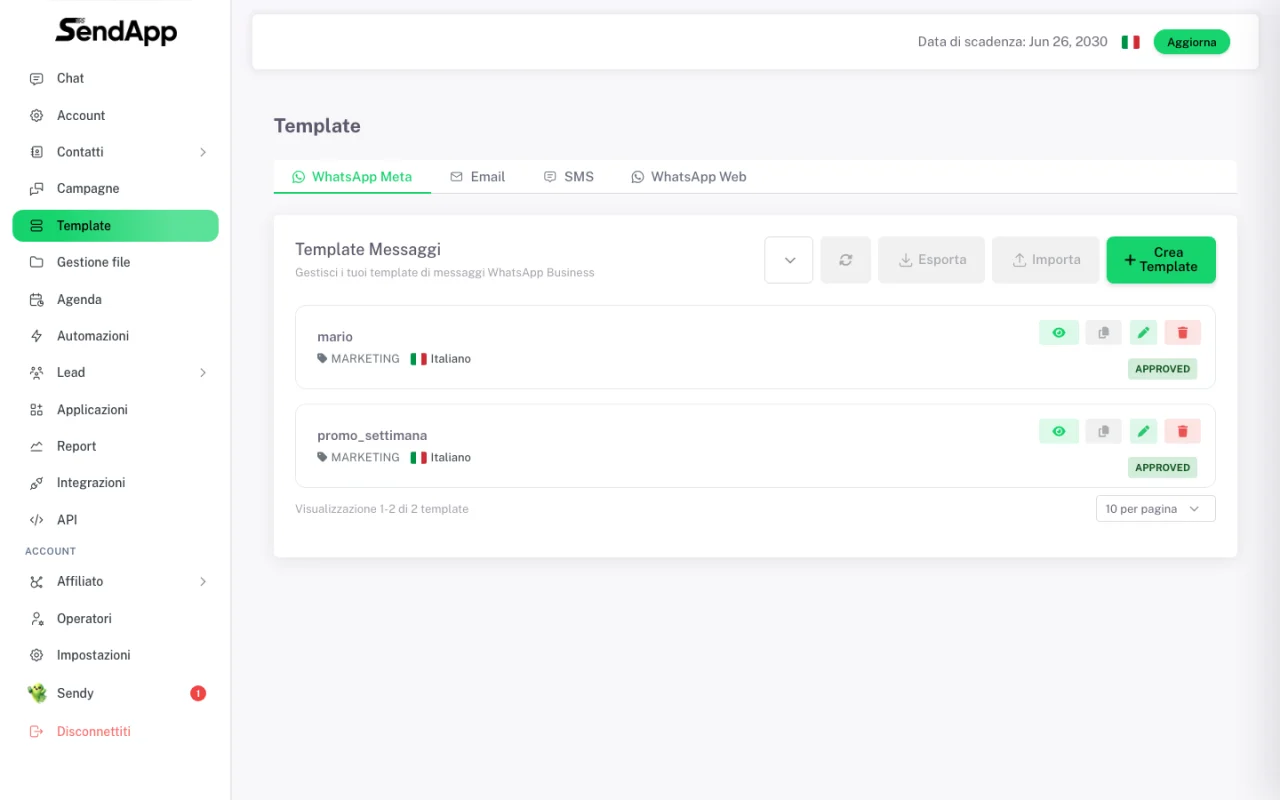
Template APPROVED
When the status turns APPROVED, the template is ready: from now you can use it in campaigns.
The mistakes that get a template rejected
Format errors (immediate rejection)
- Wrong variables: they must be written {{1}}, {{2}} (double braces, progressive numbers). Rejected: single braces, spaces inside braces, special characters (#, $, %).
- A variable at the start or end of the text with no text around it: the message can’t begin or end with a variable.
- More variables than words (a “skeleton” template like “{{1}} {{2}} {{3}}!”): rejected as suspected spam.
- Over 550 characters in the body (2026 rule), more than 10 emoji, or 4+ consecutive spaces / blank lines in a row.
- Emoji or formatting in the header/footer: only plain text is allowed there.
- Template name with spaces or capitals: use only lowercase, numbers and underscores (e.g. summer_promo_2026).
- Body identical to a template already approved in the account: duplicate, automatic rejection.
Content and policy errors
- Asking for sensitive data (card numbers, documents, passwords): automatic rejection.
- Shortened links (bit.ly…) or links that don’t match the business: always use your own domain.
- Sectors banned by WhatsApp policy (gambling, weapons, adult, crypto-exchange…): rejected whatever the text.
- Vague or generic content (“Hi, I have something to tell you”): Meta wants to understand what the user will receive.
- A URL inside a variable: no. The link must be fixed in the template or as a URL button.
Examples: good vs bad
- ✅ Good
- “Hi {{1}}, this week it’s -20% on all our pizzas 🍕 Book your table with the button below. Reply STOP to opt out.” — variable in the middle, one clear CTA on the button, opt-out.
- ❌ Only variables
- “{{1}} {{2}} {{3}}!” — more variables than words: rejected as suspected spam.
- ❌ Starts/ends with a variable
- “{{1}}, special offer” or “…learn more {{2}}” — the message can’t begin or end with a variable.
- ❌ Promo disguised as UTILITY
- A UTILITY template with “20% off” inside is approved but moved to MARKETING: you pay 5-7× without noticing.
Best practices that get approval (and perform)
- When asked, provide realistic examples for each variable: Meta uses them to evaluate.
- Buttons: up to 3 quick replies, or 2 URLs + 1 phone. Button CTAs convert better than links in the text.
- Close MARKETING messages with an opt-out (“Reply STOP to opt out”): it protects the number’s quality rating.
- The quality rating is the number’s lifeline: if it drops (too many blocks/reports), Meta lowers your sending limits. Send only to those who consented, segment with tags, don’t spam.
- If a template is rejected, you can edit and resubmit it (in SendApp just duplicate and fix it) or appeal from Business Manager.
Ready to put it into practice?
Open SendApp and follow the steps in this guide. Need help? Support is one message away.