

Before you start
- Active SendApp Agent account
- Access to TeamSystem CRM with permission to create a Web API Key
- A channel connected in SendApp for sending (WhatsApp, SMS or email)
What is different from the medical integrations
- It connects in a minute, no waiting
- The customer generates the token inside the CRM. No registration to request, no approval to wait for: it works the same day.
- Privacy consents are chosen by the customer, not guessed
- TeamSystem CRM lets each company define its own consent types. SendApp doesn’t guess which one is marketing: you choose it in the settings, and exactly that one is respected.
- It respects “Do not contact”
- The CRM has a dedicated flag on the customer record. When it is on, that customer receives nothing, whatever the other consents say.
What it does in practice
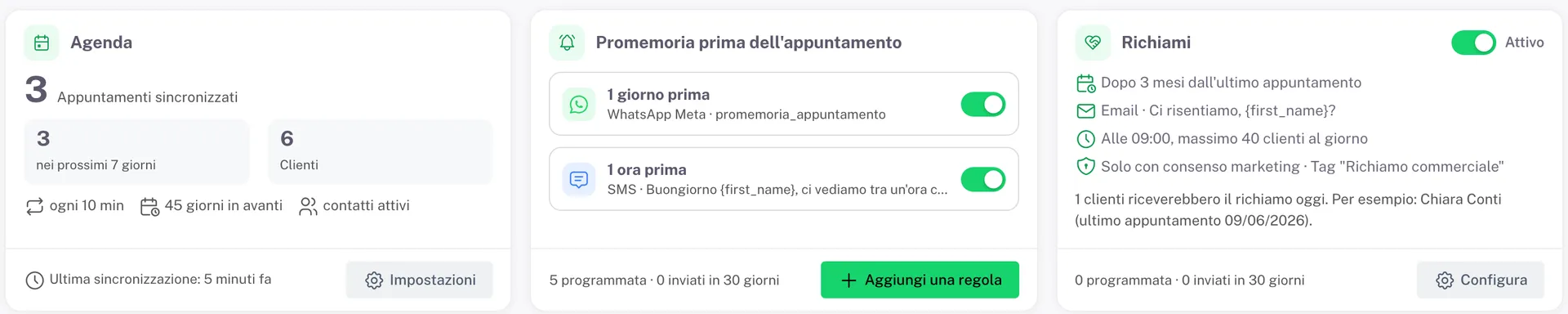
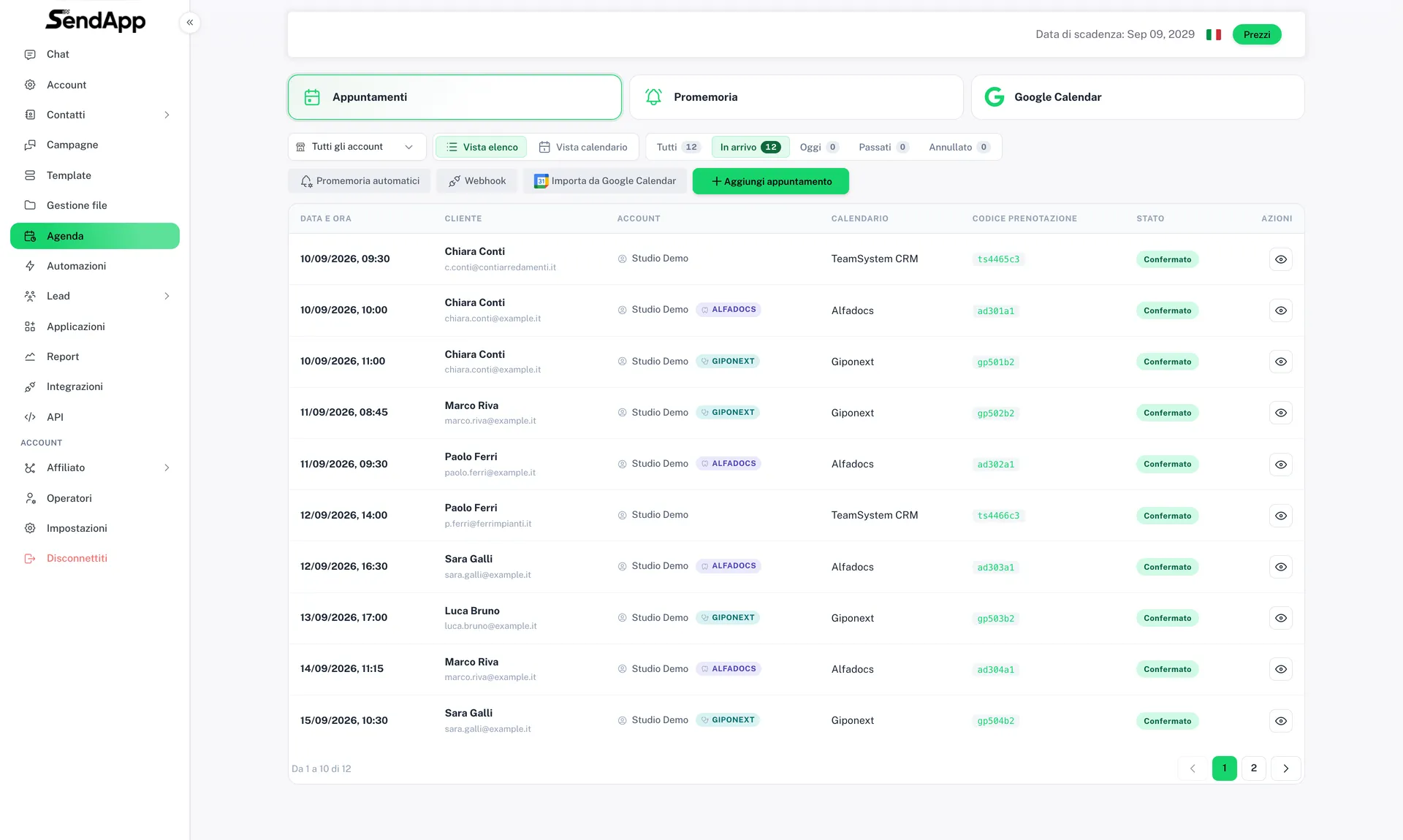
- Every appointment in the CRM calendar becomes a row in the SendApp Calendar, with customer, date, time and calendar. Moved in the CRM, it moves here too; deleted, it is cancelled here too.
- Up to five reminder rules before the appointment, on WhatsApp, SMS or email.
- Follow-ups for customers you haven’t heard from in a few months, with a daily cap and a marketing consent you choose.
- Name, phone, email and date of birth land in SendApp Contacts with the TeamSystem CRM tag. Existing contacts are recognised by phone or email, never duplicated.
How to connect it
- 1
Create the token in the CRM
In TeamSystem CRM go to SETUP → USERS → USER, Web API Keys tab, Add Web API Key button. Read permissions on appointments and contacts are enough: you can create a token limited to those, SendApp needs nothing else and writes nothing.
- 2
Paste it into SendApp
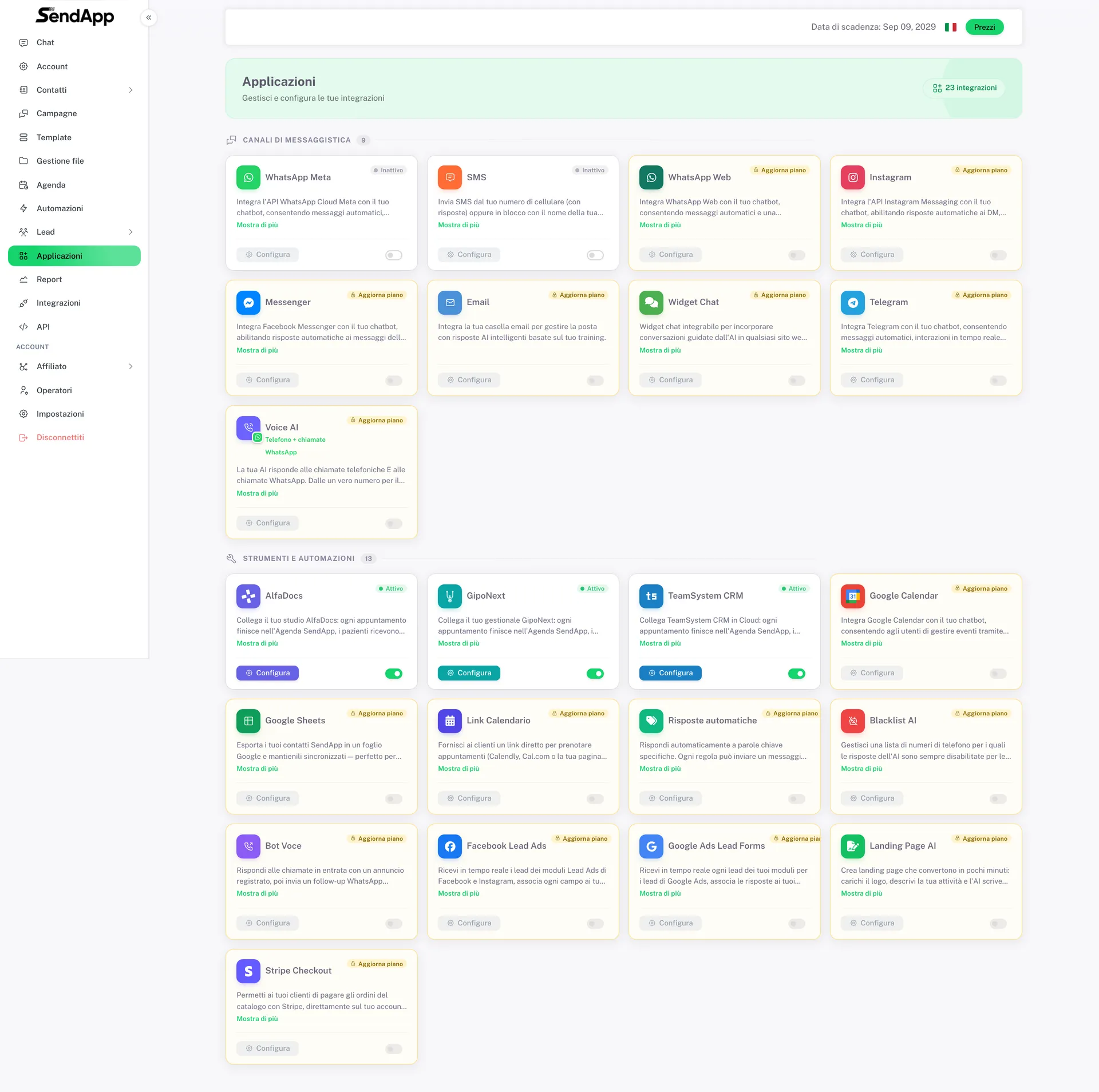
In SendApp go to Applications → TeamSystem CRM → Connect now. Paste the token and choose the time zone.
- 3
The first sync
SendApp checks the token and starts reading the calendar. The first appointments appear right away.
Reminders before the appointment
From Reminders before the appointment → Add rule. Up to five rules:
| Choice | What it means |
|---|---|
| How far ahead | 1 hour, 1 day, 2 days… or a custom interval |
| Channel | WhatsApp, SMS or email |
| Message | an approved WhatsApp template, or free text |
Placeholders: {first_name}, {name}, {appointment_date}, {appointment_time}. Example: “Good morning {first_name}, see you on {appointment_date} at {appointment_time} as agreed.”
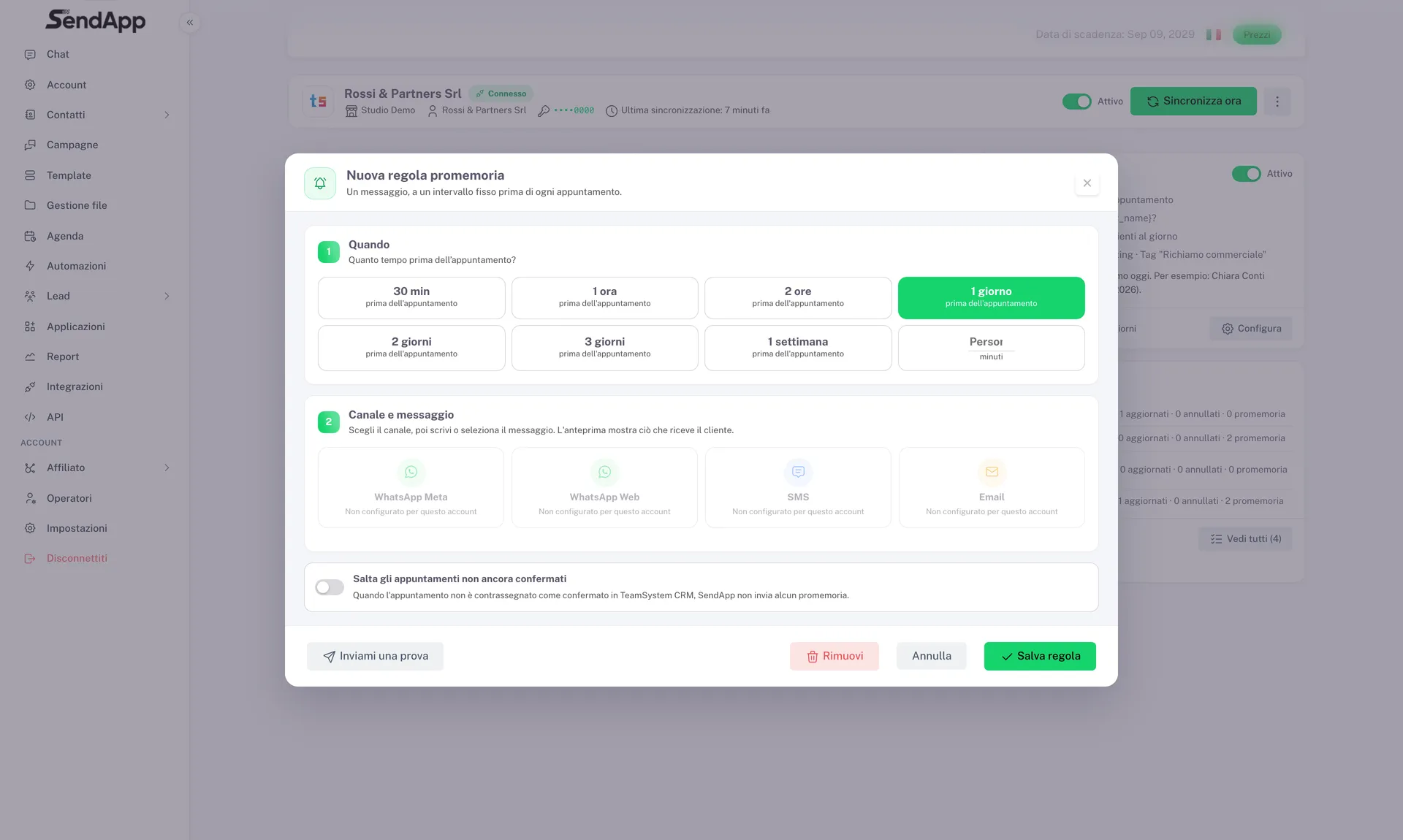
Useful option: you can choose to skip unconfirmed appointments, for those who confirm by phone first.
A rule that would fall in the past is skipped: if you set “one day before” and the appointment is in two hours, that reminder doesn’t go out.
Follow-ups
Here the purpose is commercial: reopening contact with someone you haven’t heard from in a few months.
| Setting | What it is for |
|---|---|
| Months since last appointment | the threshold, often 3 months |
| Window | how far back to look |
| Send time | when they go out |
| Maximum per day | protects the reputation of the number |
| Don’t repeat for | how often the same person can be contacted again |
| Only with marketing consent | the one chosen in the settings |
| Skip those who already have an appointment | already in the calendar |
Email works well for sales follow-ups: you can write a longer message than an SMS.
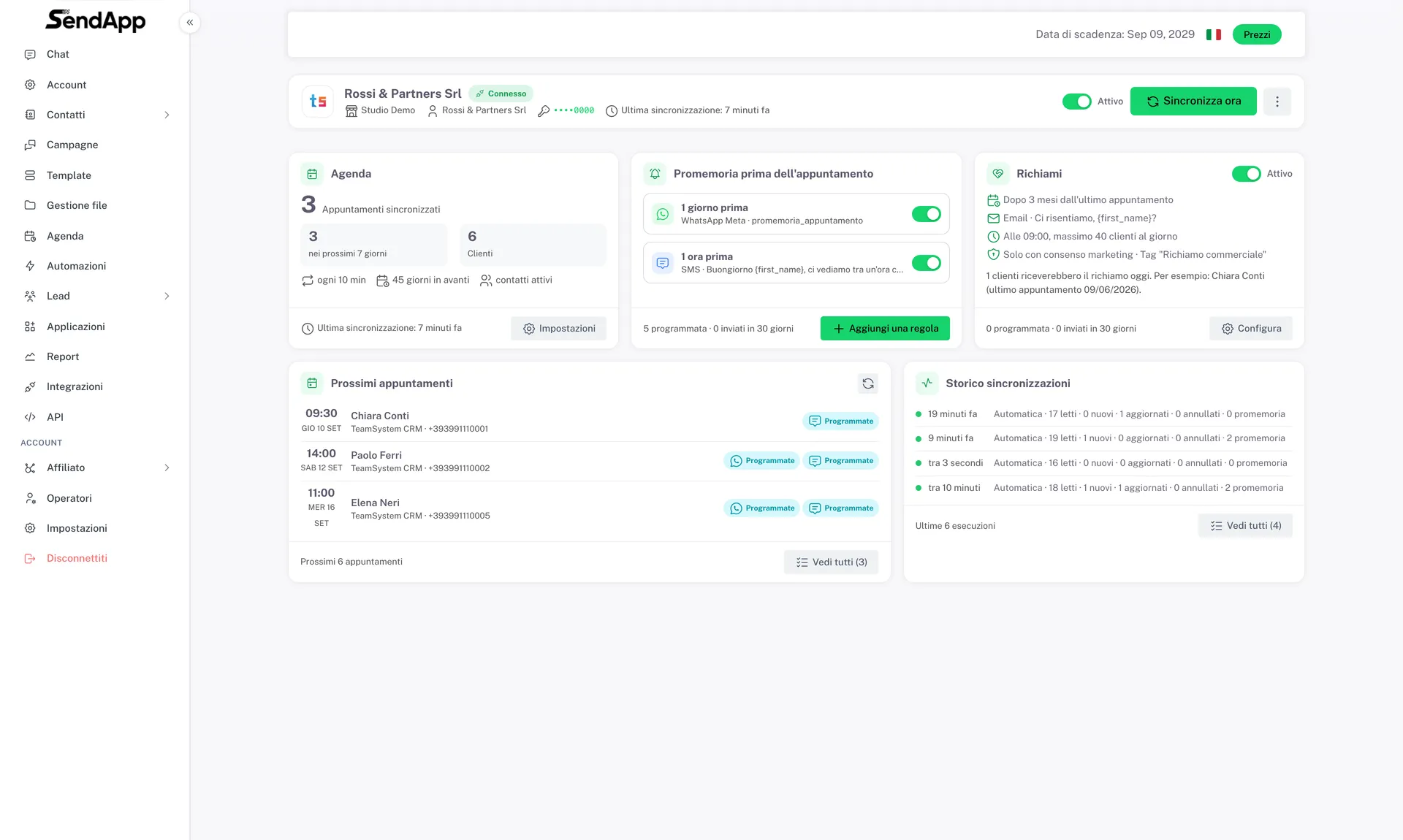
Sync settings
| Setting | Default | What it does |
|---|---|---|
| Days ahead | 60 | how far ahead to read |
| Every how many minutes | 10 | check frequency |
| Create contacts | on | fills the address book |
| Tag | TeamSystem CRM | contact label |
| Default prefix | +39 | for numbers without a prefix |
| Calendars | all | limits to some calendars |
| Marketing consent | — | which consent counts as marketing |
| Skip private appointments | on | excludes those marked private in the CRM |
The most important field is the consent. Each company uses different codes: here you state which one means “may receive commercial communications”. Left empty, any ticked consent is enough: more permissive, less precise. The CRM’s “Do not contact” flag always wins.
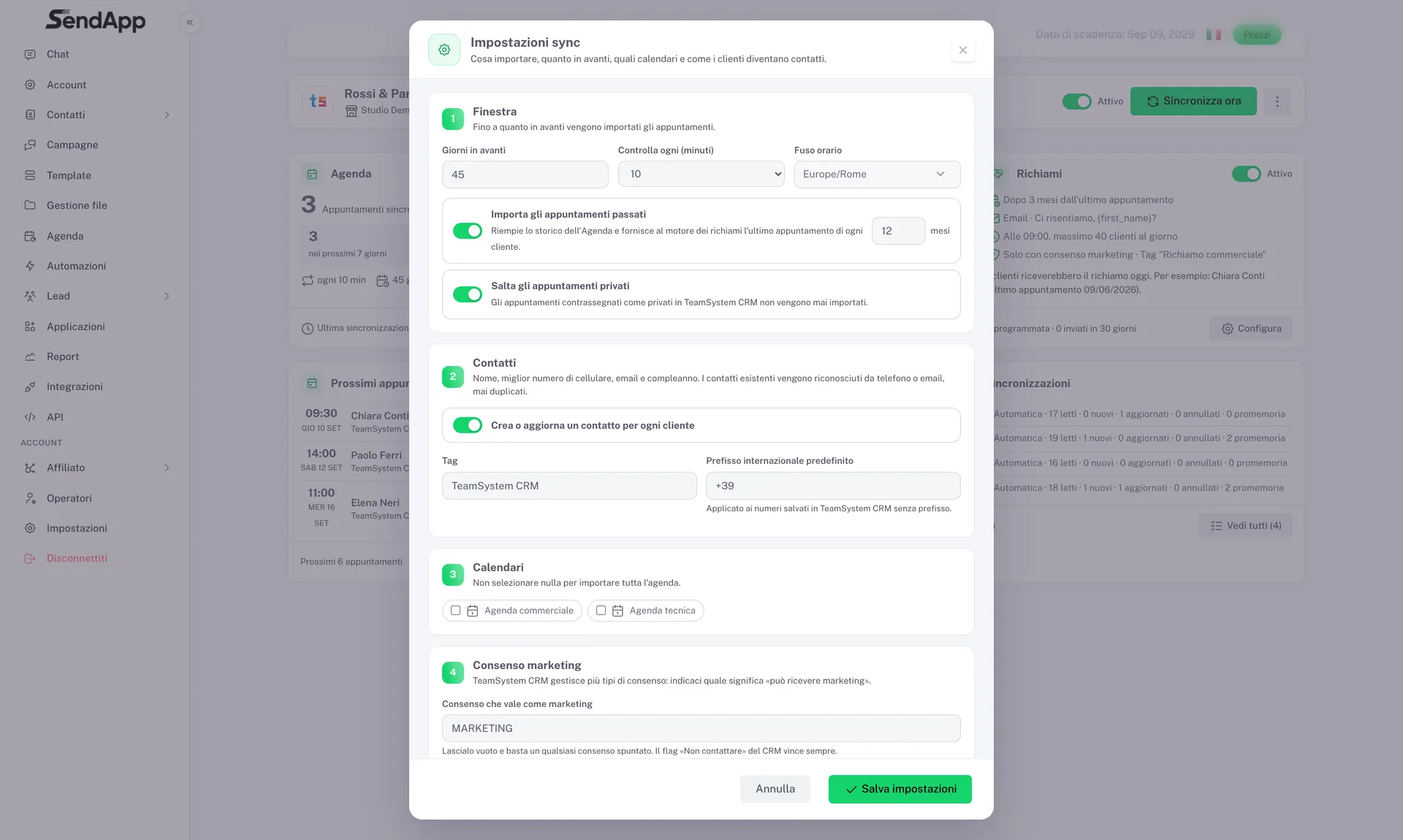
How to check it works
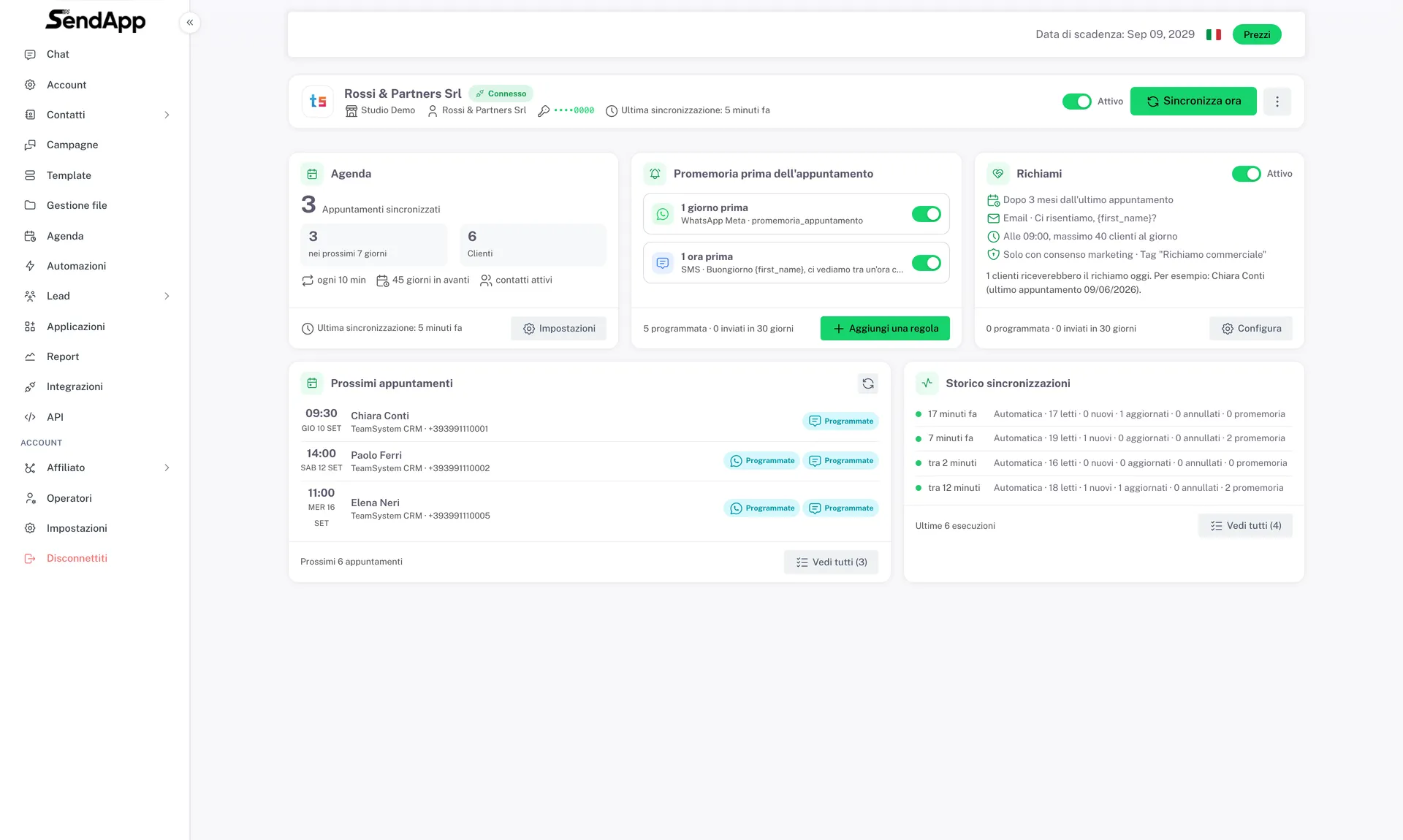
- The figures at the top: synced appointments, next 7 days, scheduled reminders, follow-ups, customers.
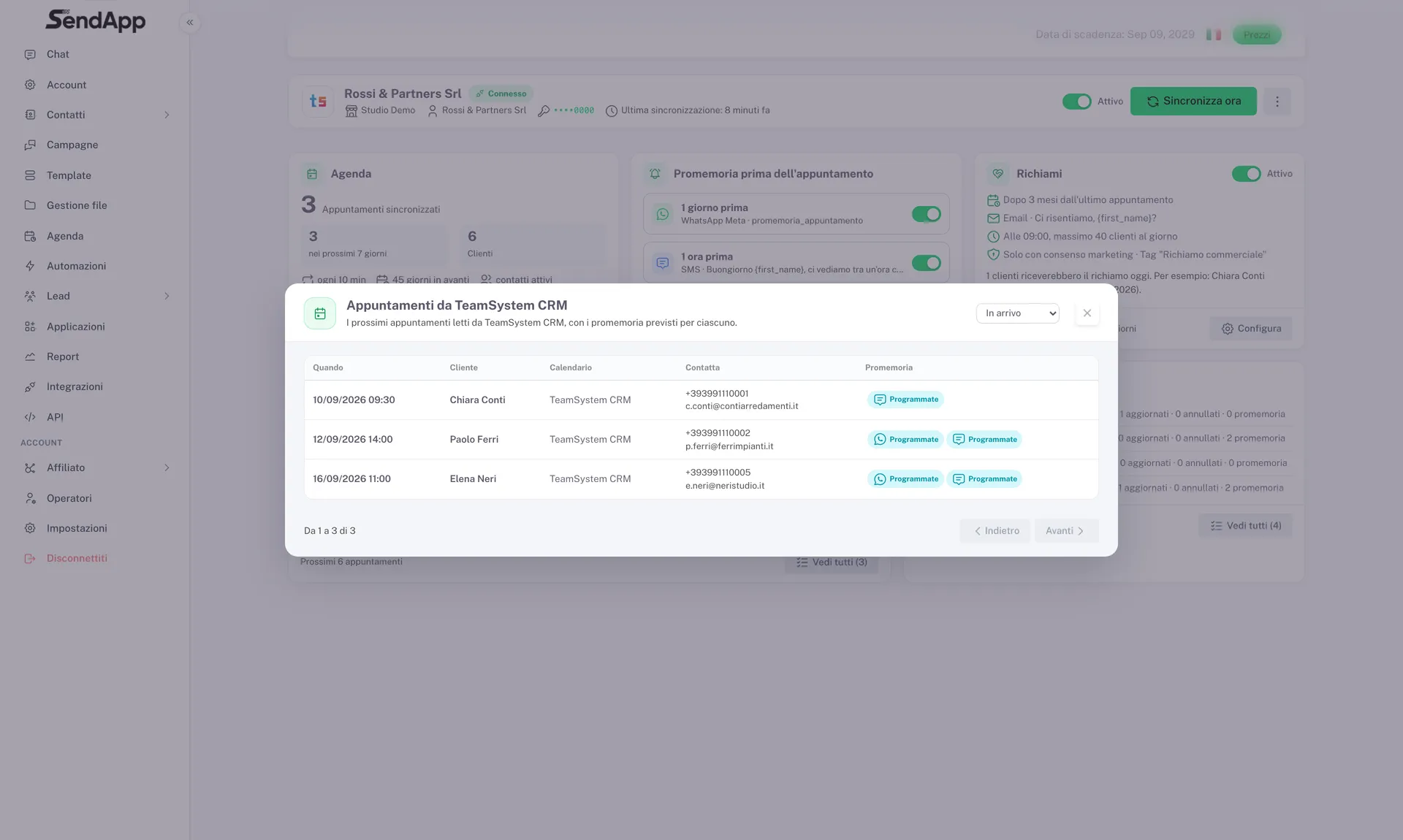
- Upcoming appointments: the list read from the CRM with the planned reminders.
- Sync history: every run.
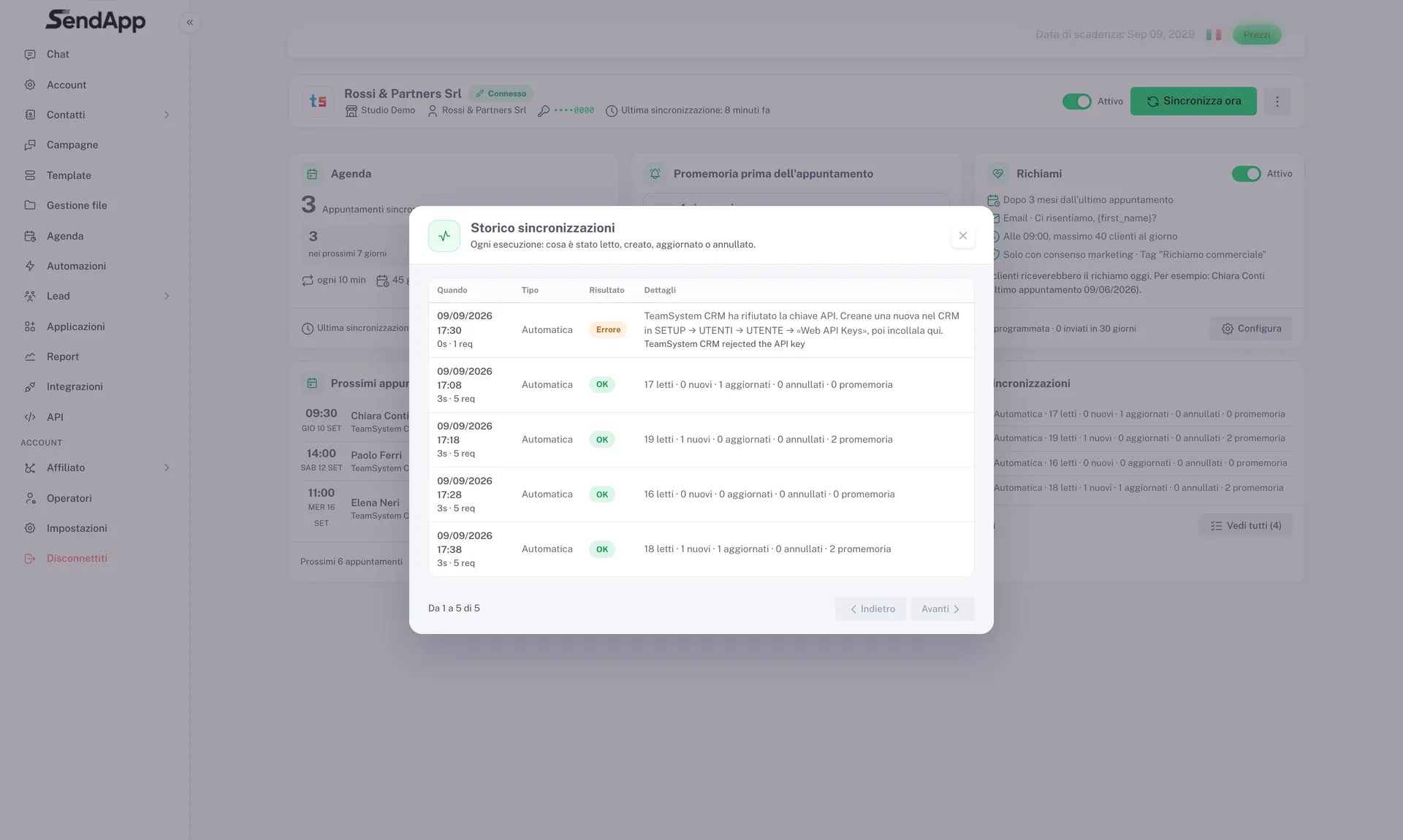
In the Calendar every imported appointment carries the TeamSystem CRM badge.
Limits to know
- Read-only: no appointments are created from SendApp in the CRM.
- One token, one company.
- Up to 5 reminder rules.
- Not instant: the CRM doesn’t notify changes, SendApp checks every few minutes.
- The consent must be chosen once: until you do, any ticked consent counts, less precise than it could be.
- Past reminders are not recovered.
Ready to put it into practice?
Open SendApp and follow the steps in this guide. Need help? Support is one message away.